


POS System
One POS System. All Functions. Your Industry.

On this page
Top-notch
cash register system
Our high-end POS system combines cutting-edge technology with maximum reliability.
Cash Register Features
Login / Permissions
- Cashier login with PIN, contactless chip card (RFID), or server key
- Cashier login with PIN or contactless chip card (RFID)
- Various user rights (roles)
- Automatic logout after every transaction (optional)
- Quick cashier switch (without logging in again)
Layout / Language
- Selection of cashier language
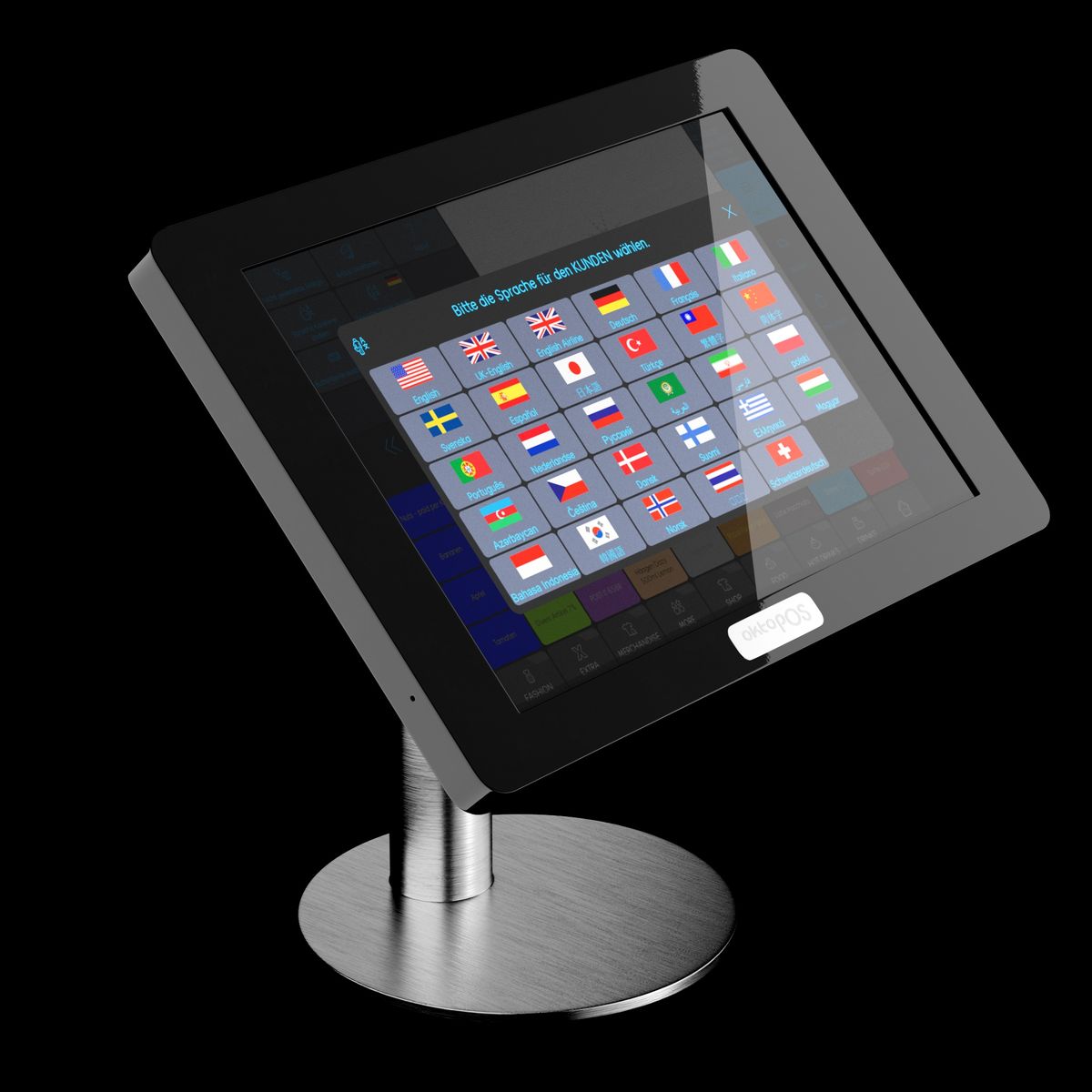
- Selection of customer language
- Selection between retail and restaurant terminology
- Light vs. dark color scheme
- Icon-assisted user guidance
- Help texts for every function
Security
- No operation with open cash drawer (optional)
- Automatic mini printouts for each transaction (optional)
- Hiding expected cash amounts (optional)
- Display of change due only after the transaction is finalized (optional)
- Colored backgrounds for confirmation of voids and finalization of transactions (optional)
- Server locks
Compliance
- GoBD compliant
- RKSV compliant (Austria)
- KassenSichV compliant
- Local TSE (offline capable)
Training Mode
- Recording of training transactions
Articles
- Unlimited number of articles
- Article selection via touchscreen or scanner
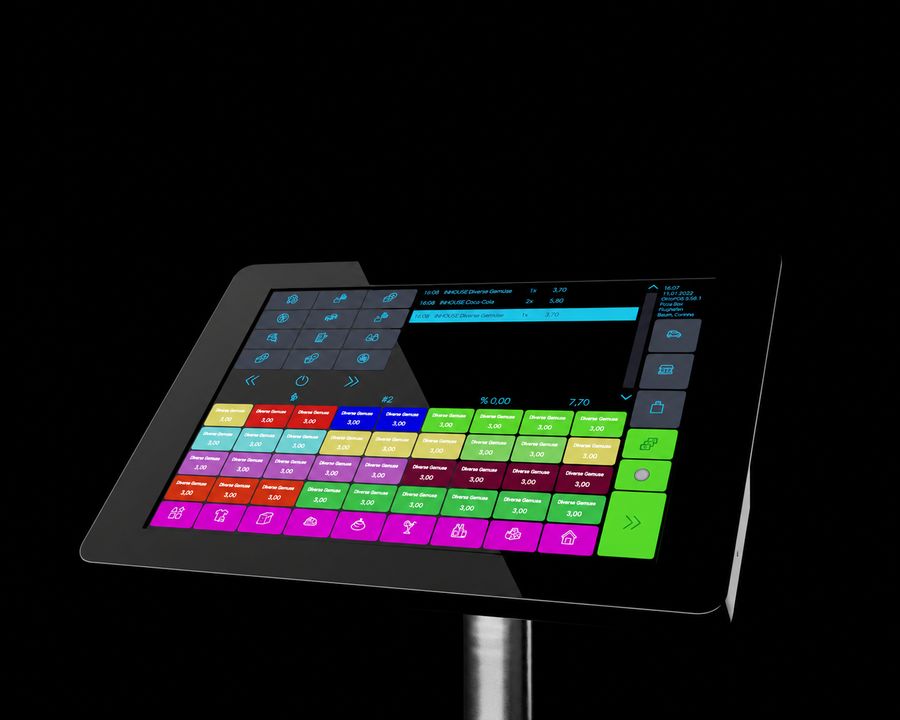
- Custom touchpad layout with OktoPOS Manager
- Custom color coding of article buttons
- Article button subgroups
- Scanning of newspapers and magazines with automatic entry of article number, price, tax rate and issue number
- Article information (prices, nutritional values, allergens)
- Product bundling
- Article memos
- Editing of articles in the OktoPOS Manager or at the register.
- Deposit for empty bottles
Article Information
- Display of article description
- Display of allergens
- Nutrition calculator
Prices
- Configuration of distribution channels (dine-in, takeout, etc.)
- Sales prices and tax rates depending on distribution channel and location
- Price calculation by piece or unit (e.g. weight)
- Fixed prices or manual price entry
- Unlimited discount types
- Article discounts and discounts on the total
- Non-discountable articles
- Selection of the articles that are not available for certain discounts
- Promotional articles / combos
Deposit
- Automatic deposit posting
Discounts
- Article discounts
- Total discounts
- Percentage discounts
- Absolute discounts
- Volume discounts
- Promotional packages / combos
Waste
- Waste recording
- Waste recording factored into the expected inventory
Payment
- Payment methods: Cash, cards, check, invoice, voucher, room charge
- Payment methods: Cash, cards, check, invoice
- Prepaid cards
- Change
- Gratuity calculator
- Predefined vouchers
- Entry of variable amounts
- Splitting of payment methods
- Room charge (hotel)
- Foreign currency
- Cash back with card payment
- Connection of card payment devices
Foreign currencies
- Foreign currency acceptance
- Foreign currency to base currency conversion
Prepaid Cards
- Loading credit at the cash register or online
- For cafeterias
- For schools
- For prepaid value cards
- Plastic cards, QR codes, etc.
- With customer name or anonymous
- Recharging
- Top-up limits
- Remaining credit payout function
Gift Vouchers
- Integrated gift voucher system
- Prepaid cards
- Automatic creation of voucher series in the OktoPOS Manager
Payments in Favor of Third Parties
- Recording lottery sales
- iTunes vouchers
- Amazon vouchers
- Etc.
Post-Paid Cards
- Storing orders on contactless guest cards
- Ordering at the counter or self-order terminal and paying later at the cash register or at the self-checkout terminal
Tip
- Tip entry
- Tip calculator
- Tips via card payment
- Recording of the tip by the cashier at the checkout or by the customer via the card payment terminal
- Transfer of the tip entered at the card payment terminal to the cash register with correct posting
- Tip list in the OktoPOS Manager (cash register management)
Tables / Held Orders
- Table administration
- Split basket
- Merge basket
- Quick hold function (to serve the next customer)
- Article search in open tables / held orders
Side Orders
- Maximum selectable quantity
- Minimum selectable quantity
- Multi-level side order selection
- Side order templates
Course Management
- Assigning a course to an article
Ways of Preparation
- Selection of preparation method / cooking level
- Display of the selected preparation method in the kitchen
Sending Orders
- Sending orders to the kitchen
- Free-text note for the kitchen
Customers
- Customer selection
- Bonus point system for customers
- Stored value on customer cards
- Customer app for stored value (identification at payment)
- Prepaid customer cards (e.g. for cafeterias)
Bonus Points
- Integrated bonus point system
- Collect and redeem bonus points
- Earning bonus points by sales value or by quantity
Printouts
- Interim bill
- Receipt
- Hospitality receipt
- Mini printout
- Discount receipt
- Pay by invoice
- Custom invoice header with logo
- Custom footer
- With or without cashier name
- Optional tip printout
- Optional change printout
Reports
- Various report printouts
- Cashier reports
- Server reports
- X-Report
- Z-Report
- Time distribution report
- Article report
- Product group report
- Top seller report
- Margin analysis
- Labor cost ratios (with actual work times or shift planning data)
- Waste report
- Discount report
- Void report
- Pro forma P&L by location
Voids
- Article void
- Receipt void
- Recall receipt
- Changing payment method
- Refunds
Period Closing
- Period closing with entry of actual cash on hand
- Expected vs. actual comparison
- Cash journal
Cash Withdrawals
- Documentation of cash withdrawals
- For example at the period closing
- Cash withdrawals for expenses
- Compliant cash journal
List of Receipts
- Overview of receipts
- Receipt details
- Article search in receipt list
- Emailing of receipts to customers
- View of each transaction with all details in the OktoPOS Manager
Electronic Receipt
- PDF receipt via QR code
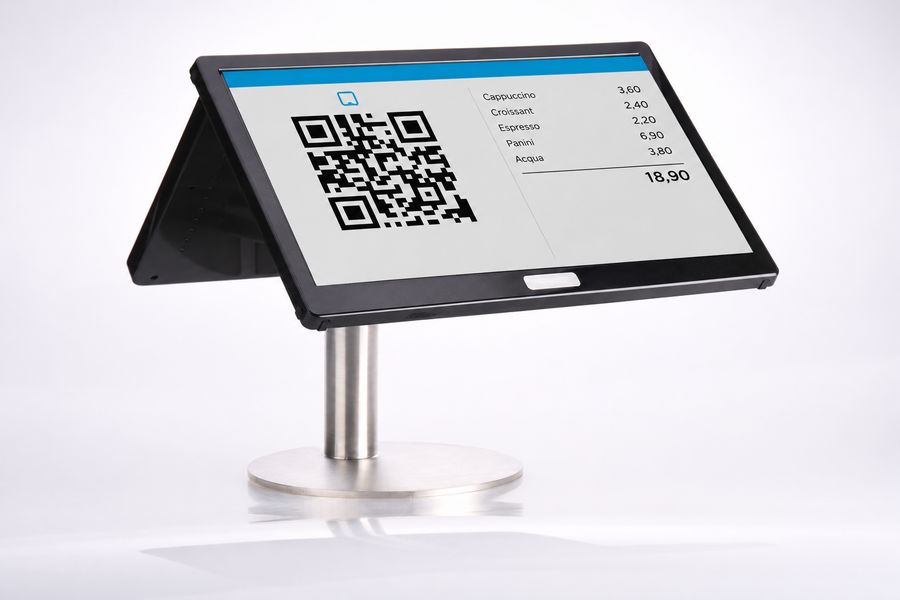
- Display of the QR code on the customer display
- Display of QR code on mini printout
- Optional: PDF receipt by email
Online Orders
- Display of online orders
- Orders from the OktoPOS customer app
- Orders from the OktoPOS online store
- Orders from self-order terminals
- Orders from e-menus
Integration of Websites
- Integrated browser
- Bookmarks for custom websites
- E.g. intranet, suppliers
Industries
- Club restaurants
- Bars
- Fresh food counters
- Beverage stores
- Hotels
- Restaurants
- Discos
- Quick Service
- Hair salons
- Retail
- Etc.
Customer Display
- Small or large customer display (15”)
- Seasonal videos on large customer display
- Custom promotional videos on the customer display
- Activity-based videos on customer display (birthday)
Peripherals
- Thanks to the standard Windows PC system, a variety of peripherals are available.
Connectivity
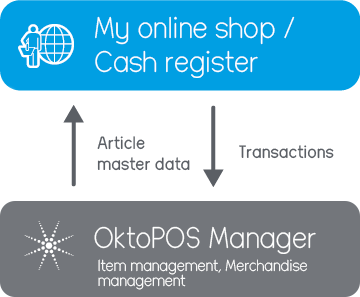
- Individual cash registers are connected to the OktoPOS Manager over the internet.
- If multiple cash registers have to synchronize at the location (e.g. for table management) or if the kitchen control system OktoKitchen is used, the coordination of data at the location is done with a small server.
Short videos on individual cash register functions

focusedUX®
No other system on the market combines such a comprehensive feature set with ease of use.
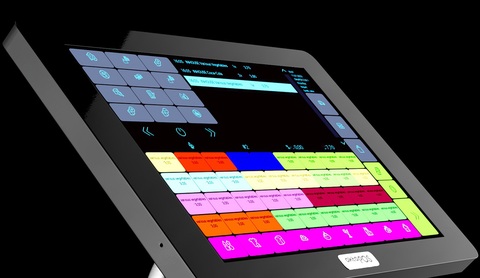
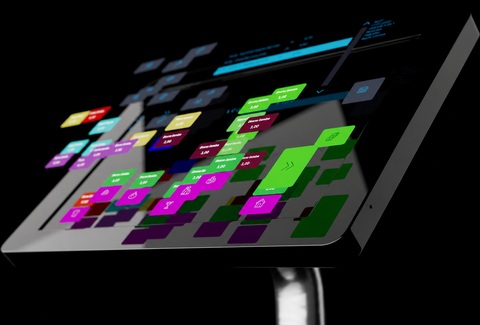
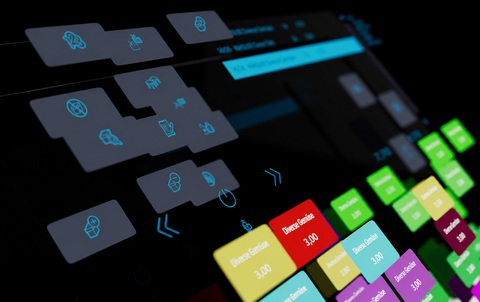
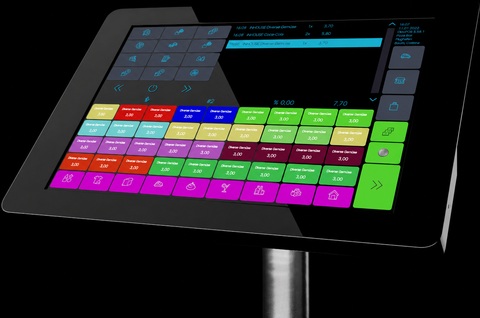
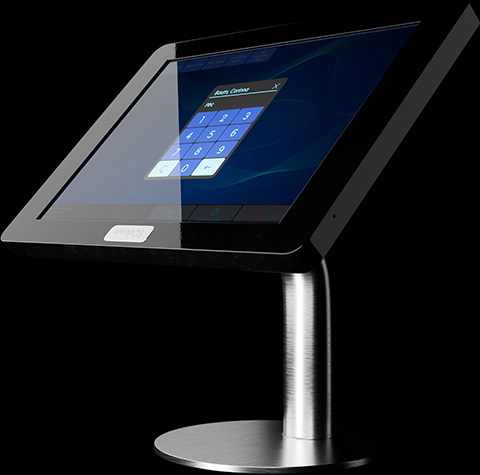
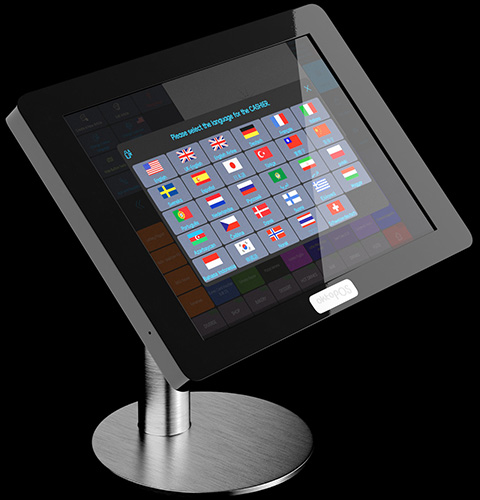
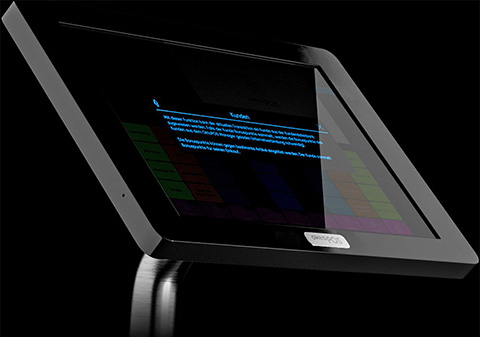
focusedUX® The user interface follows our proprietary focusedUX® model, crafted by our team of user experience experts to ensure an intuitive and efficient workflow.
Years of Optimization With years of real user feedback and observation, we've continually optimized OktoPOS Cash.
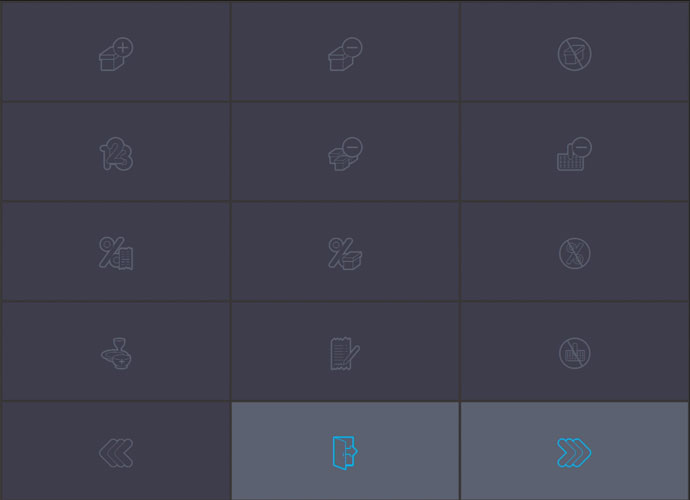
Icon-Based Navigation The navigation of OktoPOS Cash is supported by more than 200 individually designed icons. The symbols and short animations help users who are not proficient in the local language.
Focused Dialogs The dialogs in OktoPOS Cash are streamlined and uncluttered, ensuring a clear and intuitive user experience. Where necessary, dialogs are divided into multiple windows to prevent information overload and enhance usability.
Navigation Support The system is equipped with numerous color codes and icons to support navigation. For example, function buttons that have been activated are marked with a red dot.
Languages Every cashier can select their own language. This does not affect the language on printouts and on the customer display.
Context Buttons The user interface of OktoPOS Cash only shows buttons that are relevant for the current operation. Irrelevant buttons are hidden.
Help Texts Holding your finger on any button displays a short text explaining its function.
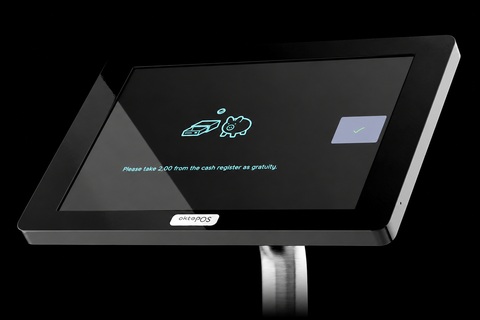
Tip The cash register shows the cashier the tip amount.
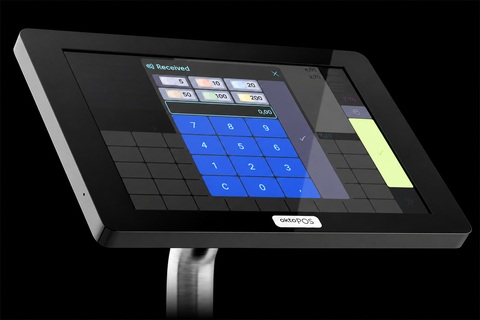
Change The amount due and the change are shown in large type on the screen.
- Training of new cashiers in only a few minutes
- Highest efficiency and usability
- Avoidance of mistakes
- Guided workflows
- Concentration on the essentials
- Speed
- Keystrokes with optional sound feedback
- Guided workflows for complex transactions
Connectivity
Single cash registers are connected to the OktoPOS Manager over the internet. If multiple cash registers have to synchronize at the location (e.g. for table management) or if the kitchen control system OktoKitchen is used, the coordination of data at the location is done with a small server.
Single cash registers are connected to the OktoPOS Manager over the internet.

Peripherals
Thanks to the standard Windows PC system, a variety of peripherals are available.

- Software:


- Hardware:
- Vendor independent
- Broad choice of models
- From slim tablet computers (e.g. Microsoft Surface) to rugged touchscreen POS terminals
- Data Connection:
- LAN, Wi-Fi, mobile
How do I create new articles?
- In the article management in the OktoPOS Manager. An article file is created manually. The properties of the article are entered in the article file.
- Upload via Excel (CSV).
- With the cash register. Articles can be created on stand-alone cash registers with the most important data fields so that they can be sold directly. If an unknown barcode is scanned, the cash register asks whether it should create the article.
- Via an API. Articles can be created by using the open HTTP interfaces in the OktoPOS Manager.
How much training does a new cashier need?
OktoPOS Cash is so user-friendly that anyone can start working with it immediately. The cashier is informed of possible errors by the cash register and guided by animations. Extensive training is therefore usually not necessary.
Architecture comparison
What a cash register depends on in daily operation.
Cash register systems differ less in their features than in where the program runs and where the data is held. That decides what happens when Wi-Fi or the internet goes down, how quickly the register responds and whether several locations can be evaluated centrally.
Where the program runs and where the data is held

Runs in the browser. Posts directly to a server on the internet.

Its own program on a tablet without a full USB port (iPad). Data several times a day.

Its own program on a computer with a full USB port. Data several times a day.
Our approach
Its own program on a computer with a full USB port. Data only at the end of the day.

Its own program on a computer. No central database, the database sits on the same computer.
Program local, data central
Both, not one or the other.
OktoPOS runs as its own program on the cash register computer and exchanges its data with the central database several times a day. The system therefore sits deliberately in the middle between a register that handles everything over the internet and a register that works entirely on its own.
- The main functions keep working when Wi-Fi or the internet goes down.
- Printer, scale, scanner and customer display are connected directly to the device.
- Printer, scanner and customer display are connected directly to the device.
- No loss of speed through wireless links and internet lines.
- Receipts go to the central database several times a day, not only at the end-of-day closing.
- Reporting and data management run in the OktoPOS Manager from anywhere.
Architecture: local + cloud
- Offline-capable at the POS:
Local frontends run autonomously; hardware-based TSE (technical security device) meets the highest security requirements. - Cloud modules centralized:
Prices, articles, reporting & workflows from headquarters. Real-time sync when connected, no manual backups needed. - Easy operation:
No dedicated VPNs or servers required; secure, continuous data storage.
On narrow screens the table can be scrolled sideways.
| Feature | Browser cash register | Tablet cash register | OktoPOSOur approach | Cash register with end-of-day transfer | Stand-alone cash register |
|---|---|---|---|---|---|
| Local network needed for running cash register operation? | At all times | At all times, also to reach printers and devices | Not for the main functions | Not for the main functions | Not needed |
| Internet needed for running cash register operation? | At all times | Usually yes | Not needed | Not needed | Not needed |
| Internet needed for kitchen control and service terminals? | Yes | Usually yes | Not needed | Not needed | Not needed |
| Internet needed for data updates and sales in the central database? | Yes | Yes | Yes | Yes | No central database |
| Evaluate and manage several registers and locations centrally? | Yes | Yes | Yes | Yes | No |
| Reporting in real time and data management from anywhere? | Yes | Yes | Yes | No | No |
| Remote maintenance | Full | Limited | Largely | Hardly any | Virtually none |
| Speed independent of Wi-Fi and the internet? | No | No | Yes | Yes | Yes |
Offline Capability
Online and Offline Cash Register - Best of Both Worlds
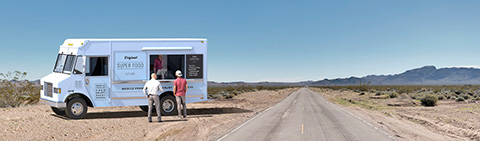
Through an intelligent combination of offline and online operation, our POS system offers the ideal connection to our web-based management software (OktoPOS Manager) with simultaneous offline capability.
OktoPOS cash registers can be used without a constant internet connection. Receipts are sent to the OktoPOS Manager when the internet connection is available again.
The OktoPOS system is designed to perform nearly all operations without requiring an internet connection. An internet connection is only needed for specific functions, such as sending receipts to the management software, performing data updates, and accessing certain customer features.
Electronic Receipt
The customer scans a QR code and has the receipt as a PDF on their phone.
- Cash register: QR code on the customer display or on the printout
- Self-checkout: QR code at the terminal
- Ordering systems: QR code on the OrderPayTab, no mobile printer
How you check out with OktoPOS Cash
Tap articles, take payment, view the receipt.
Virtual Cash Register
Mobile Payments with OktoPOS: Simple and Anywhere

Snack box in the office
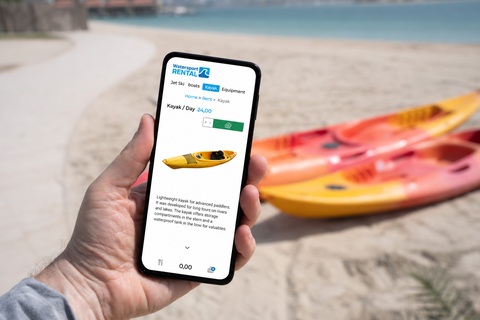
Anyone who takes something scans the QR code on the box, selects the item and pays by phone. The item is deducted from stock immediately, so you can see what needs restocking.

Collecting donations
Print your QR code on the donation poster. Anyone who scans it can donate straight from their phone.
Are you often on the move or need a flexible solution for temporary sales locations, such as home visits or pop-up events? The OktoPOS Shop makes it possible. Simply integrate a QR code on your business card or a flyer. Your customers scan this code with their smartphone, select the desired products or services, and pay directly via their mobile device.
The POS runs on the phone or tablet the business already has. You take payment in the store, at the table, at the market or at the customer’s home.

Cash Register Payment Methods
Cash, card, credit or invoice: all in a single transaction.
The OktoPOS system offers a wide choice of payment methods. The cashier selects the payment method in the payment dialog at the POS. Several payment methods can be combined in a single transaction.
- Paid immediately: cash, card, foreign currency, check
- Credit and vouchers: topped up or bought beforehand
- Paid later: invoice, room, guest card, direct debit: invoice, direct debit
- In every transaction: split payments, tips, cash withdrawal: split payments, cash withdrawal
The payment dialog at the POS. Only the payment methods enabled by the business appear on the right.
Cash, card and check
Cash
An integrated cash journal is available.
Card and mobile payment
Software: API-EFT
Not only credit and debit cards but also mobile payments such as Google Pay or Apple Pay can be processed via the card terminals.
Card payment devices can be connected to OktoPOS Cash.
Cash in Foreign Currency
Any currencies and exchange rates can be stored. The register converts the foreign currency into the base currency of the register.
Checks
For example, restaurant checks.
Credit and vouchers
Prepaid Cards
Prepaid cards can be easily topped up and sold directly with the cash register. These cards can be used to pay for future purchases in any amount desired. Additionally, prepaid cards can be recharged, offering flexibility and convenience for both customers and businesses.
Customer credit account
Customers can top up their prepaid account and use the balance for future purchases. The deposit is made either via a cash register or via a top-up terminal.
Selling gift vouchers
Gift vouchers can either be created at the cash register using the receipt printer or they can be sold via an online store provided by OktoPOS.
Accepting vouchers
Any type of voucher can be defined as a means of payment in the cash register. The cash reports subdivide the different types of vouchers so that they can be posted to the appropriate clearing account in accounting.
Open items and customer accounts
Pay by Invoice (House Account)
Customers have the option to pay by invoice. A payment request, including the payment terms and bank details, is printed directly from the receipt printer.
Pay Later
Customers can charge their purchases to an account. An existing customer account or one created at the register is selected, allowing the customer to pay their outstanding balance at a later time. This feature is particularly useful in settings like hotels or sports clubs, where members settle their open invoices every six months at the register.
Room Charge
Hotel guests can conveniently charge their bills to their room. This can be managed either through a connected Property Management System (PMS) or by using the built-in hotel room management feature in OktoPOS.
Guest Card (RFID)
Guests are given a guest card when they enter the restaurant, club or disco. Every order is charged to the card. When leaving, the guest pays the accrued amount at the central checkout register.
At the POS. Customers can be added to the OktoPOS customer database directly at the register. If an email address is provided, the invoice can be sent as a PDF to the customer.
In the OktoPOS Manager. Outstanding balances are managed and cleared in the accounts receivable list within the OktoPOS Manager. In the customer database, customer accounts can be either approved or blocked for invoice payments.
Possible in every transaction
- Split payments. All payment methods can be combined with each other, and a customer can split a sales transaction across several payment methods.
- Tips. Recorded on the card payment terminal or by the cashier, with a tip calculator.
- Cash withdrawal. Pay out cash against a card payment, so the customer saves the trip to the ATM.
- Payments on behalf of third parties. Lottery tickets and third-party vouchers are recorded without VAT and not as revenue, but are still counted in the cash balance.
 Next Generation Payment
Card payment - OktoFIN-ONE
Fully integrated. Plug & Play.
Software: SW-OF


One contact for register and card payment
The POS system comes from OktoPOS, card payment with OktoFIN-ONE from a separate company. For your business it remains one point of contact. Anyone who calls about a card payment speaks to people who also know the register.
- One contact for register and card payment
- Available around the clock for card payment problems
- OktoPOS support helps resolve card payment errors
- One login in the OktoPOS Manager for register transactions and card payments
 POS system
Your logo and your tip suggestions
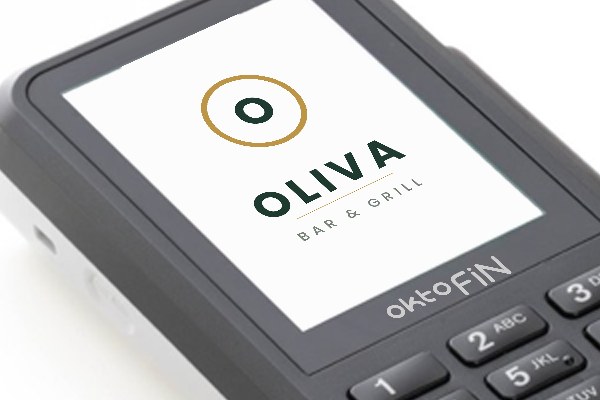
Your logo on the card device
Between two payments, the terminal shows the business’s logo full screen.
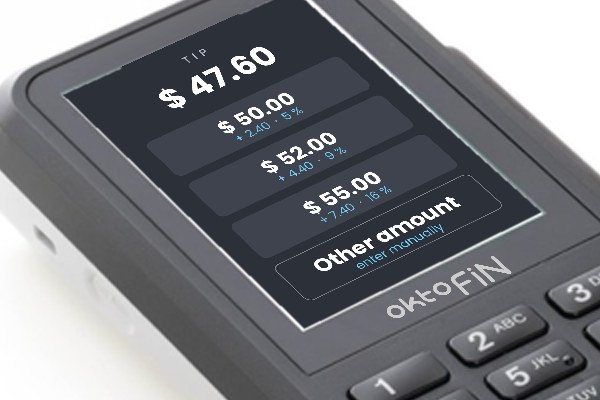
Between two payments, the terminal shows the business’s logo full screen. The tip prompt the customer sees when paying is set up by the business itself.
- Your logo full screen on the device the customer sees
- Tip prompt on the card device, the suggestions are set by the venue
Order and charge with one device
With the OrderPayTab the card payment runs on the same device servers use to take the order. A separate card payment device and a mobile receipt printer are no longer needed.
- Order and payment in one flow
- Contactless cards and mobile payment methods directly on the device
- Tip suggestions on the display
- Digital receipt via QR code, no mobile printer
- Needs a location server on site
Three devices become one.
The monthly statement
The statement arrives already reconciled with the register entries.
- Every payment checked against the register entry, separated by payment method
- Substitute receipt where a sale is missing from the cash book
- On request, the ready-made accounting entry for financial accounting
- E-invoice according to EN 16931 in the PDF
- VISAmatches
- Mastercardmatches
- American Expressmatches
On request, OktoFIN supplies the accounting entry as well. Matched to the business’s chart of accounts. Depending on the size of the business, this saves a working day a month or more.
Integrated processes

Reporting in the monthly statement
| Topic | Other payment service providers | OktoFIN |
|---|---|---|
| Reconciliation with the register | Others:Payment data only, no reconciliation with the register | OktoFIN:Reconciliation with the register entries from OktoPOS |
| Discrepancies | Others:Differences remain unexplained | OktoFIN:Every discrepancy named and checked |
| Missing entries | Others:No substitute receipt for missing entries | OktoFIN:Substitute receipt for missing entries included |
| Open items | Others:No information on open items for the following month | OktoFIN:Open items shown for the following month |
| Login | Others:Login to a third-party platform required | OktoFIN:Everything in the OktoPOS Manager, no second login |
| Accounting | Others:Manual reconciliation in accounting | OktoFIN:Accounting export, e-invoice and accounting entry without manual reconciliation |
One payment solution for every channel
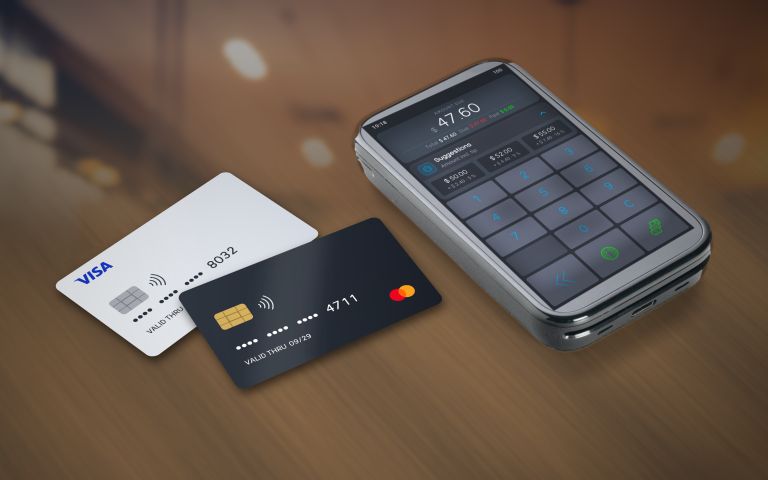
Payments on site, at the table, in the online store and in the ordering app run through the same account on the same terms, including locations abroad. One platform in more than 20 countries.
Payments on site, mobile in the store, in the online store and in the ordering app run through the same account on the same terms, including locations abroad. One platform in more than 20 countries.
One contract, one accountthe same conditions for every channel- POS on site
- OrderPayTab at the table
- Mobile in the store
- Online store, ordering app
- Locations abroad, more than 20 countries
- No connection fee for the OktoPOS register, no monthly basic fees
- Can be canceled monthly, no long contract term
- Card terminal for a monthly rental, SIM card included
- Activation usually within 24 hours, the documents go through the OktoPOS Manager
Benefit from our favorable rates and get a custom quote based on the structure of your transactions.
Looking for a card payment device only, without a POS system? Talk to us. Request a quote
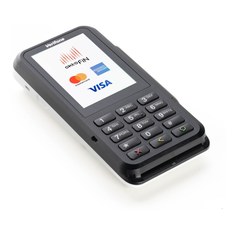
| Feature | P630 · stationary | AMS1 · mobile | S1E2L · mobile, OrderPayTab | |
|---|---|---|---|---|
| Picture | 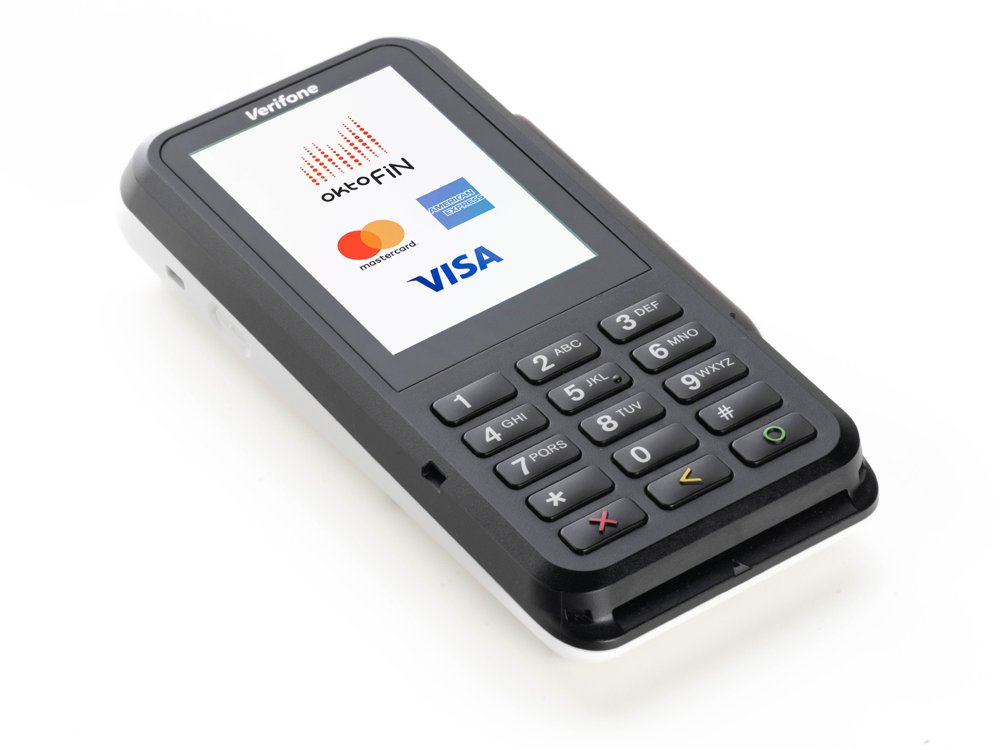 | 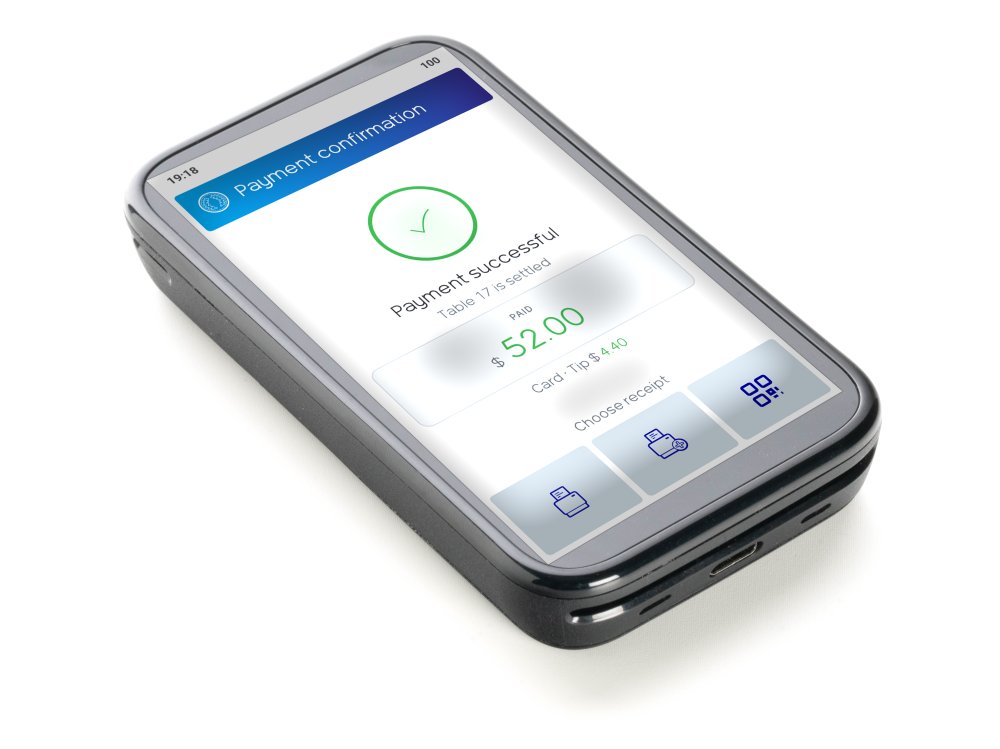 | 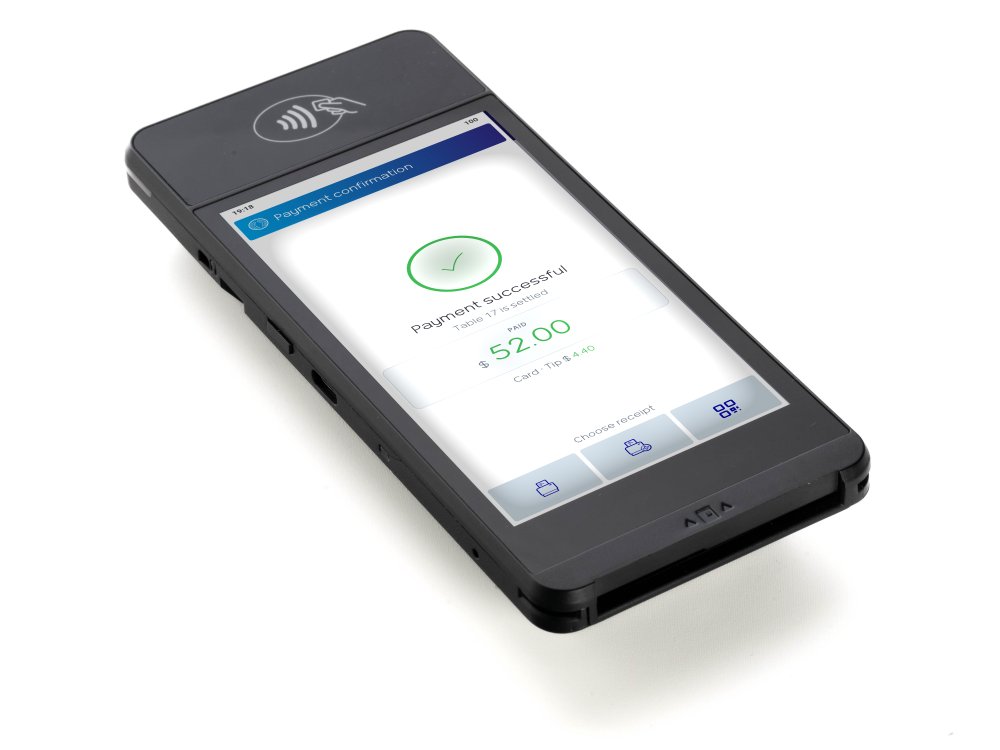 | |
| Use | at the register, no cable to the register | mobile, also as OrderPayTab | mobile, anywhere in the store | mobile, as OrderPayTab with a large display |
| Display | 3.5 inch, touch, keypad | 4 inch, touch | 5 inch, touch | |
| Connection | Wi-Fi, LAN, cellular network | Wi-Fi, cellular network | Wi-Fi, cellular network | |
| Card reader | contactless, chip, magnetic stripe, all card types | |||
| Power | power adapter, no battery | battery, charging station | battery, charging station | |
| Dimensions, weight | 80 × 32 × 170 mm, 310 g | 67 × 18 × 122 mm, 170 g | 75 × 25 × 169 mm, 262 g | |
SIM card included in all devices as a fallback when the Wi-Fi is not reachable. Use as OrderPayTab needs a location server on site.
SIM card included in all devices as a fallback when the Wi-Fi is not reachable.
| Feature | OktoFIN-ONE | Other provider via ZVT |
|---|---|---|
| Connection to the POS | over the internet, free of charge | ZVT cable or local network, monthly interface fee |
| Setup | Plug & Play, set up centrally | usually a technician on site |
| Configure tip suggestions | yes | no |
| Voids from the register | yes, without a third-party login | only same-day on the terminal |
| OrderPayTab at the table | yes | no |
| Incoming payments in the Manager, actual vs. target | yes | no |
| Accounting export with actual values | yes | target only |
| Monthly statement reconciled with the POS | yes | no |
| Online store and ordering app | same account, same terms | not possible |
| Countries | more than 20, one contract, one account | one provider and one connection per country |
| Support for card payment problems | around the clock, from a single source | Mon to Fri 9 a.m. to 6 p.m., POS and payment separate |
- Why are there no unexplained differences in the accounts with OktoFIN?
- The card payment is integrated into the OktoPOS system. The monthly statement is reconciled with the transactions recorded at the POS, and any differences are explained. If a register is turned off in the middle of a payment, OktoPOS finds out and creates a replacement receipt from the card payment.
- Why is the connection more stable than ZVT?
- ZVT runs locally at the location, via cable or the internal network. Cable faults, port assignments, IP conflicts and firewall settings are sources of error. OktoFIN connects the device and the POS over the internet, which is needed for card payments anyway.
- Why is the setup Plug & Play?
- The device is set up centrally and connects to the POS automatically. All you have to do is connect it to the Wi-Fi. A replacement device is connected the same way, with no visit on site.
- Do the SIM cards cost extra?
- No. They are included in the devices and step in when the Wi-Fi is not reachable.
- How long does activation take?
- The documents go through a link in the OktoPOS Manager. Once they are complete, activation usually takes place within 24 hours.
- How are customer funds protected?
- OktoFIN does not hold customer funds. Processing runs through a supervised payment institution that keeps the funds separate from its own assets in line with European payment services rules.
- Why is the notice period so short?
- We let the market judge us. That is why the contract can be canceled monthly. Longer terms only apply when OktoFIN finances the devices.






OktoFIN-ONE is an offer from OktoFIN GmbH, Große Gallusstraße 14, 60315 Frankfurt am Main, Germany. okto.finance · Contact us
OktoPOS Solutions GmbH and OktoFIN GmbH are legally independent companies. POS systems are offered by OktoPOS Solutions GmbH, the brokering and processing of card payments by OktoFIN GmbH. Contracts for payment services are concluded exclusively with OktoFIN GmbH and its partners. The payment solution requires the OktoPOS POS system.
Interfaces
Shift Planning
Any modern shift planning system can use the OktoPOS interface (API) for exporting sales transactions to optimize planning based on revenue.
Card Payment Devices
OktoFIN
With the integrated OktoFIN interface, you receive card payment services for retail and e-commerce in more than 20 countries from a single source.
Find out moreAccounting
Accounting Programs
Various sales export formats are available, which can be imported in almost all common accounting programs.
Individual Accounting Interfaces
For example, if you work with an SAP system with an individually configured import interface and if you want to automatically transfer sales data from OktoPOS, we offer individual configuration, billed by time and effort.
Online Stores
Software: API-ODR
The open interfaces can be used for third-party online stores.
OktoPOS Online Store
For a quick and cost-effective implementation, we recommend using the OktoPOS online store and the OktoPOS apps.
Suppliers
Software: API-SUP
Connection
Suppliers can be individually connected to the inventory management system. This requires cooperation and the necessary technical setup on the supplier's side.
Property Management Systems (PMS) for Hotels
Software: API-PMS

OktoPOS Cash can be connected to the Oracle Hospitality Systems via a certified interface.

OktoPOS Cash can be connected to the Infor PMS systems via a certified interface.
Find out moreOpen Interfaces
Software: API-DIV, API-MAT
OktoPOS offers several HTTP interfaces that can be used by third-party applications. Queries are made via the OktoPOS Manager (cloud).
Create Article
You can use this interface to create new articles in the OktoPOS Manager.
Create Customer
You can use this interface to create new customers in the OktoPOS Manager.
Import Order
You can use this interface to transfer already paid orders from a third-party system to the register so that the order is visible on the cash register and, if present, on the kitchen station.
Transactions
You can use this interface to query the details of a finalized sales transaction in the OktoPOS Manager. The transaction number is required for the request.
AI agents
Software: API-MCP
MCP
Via the Model Context Protocol, an AI agent works directly with the data in your OktoPOS Manager. What it may see and do is decided by your rights management.
Find out more
Electronic Shelf Labels (ESL)
The electronic price tags retrieve the article data from the OktoPOS Manager in the cloud.
We are working together with the innovative provider Vusion.
Can I write directly to the database in the OktoPOS Manager from outside?
The database can only be written to via the OktoPOS modules and the defined interfaces.
This is because the internal data structures change regularly due to updates and because OktoPOS is a fiscal system that is subject to strict tax law requirements. This makes an uncontrolled change of the database impossible.
Can I connect an external inventory management system?
Yes, you can easily connect your external inventory management system via our OktoPOS API. This allows important data such as articles, stock levels, and orders to be securely synchronized between OktoPOS and your inventory management software.
Our integrated inventory management system covers essential functions, from inventory counts and supplier orders to automated stock analysis. If you prefer to use another system, we offer flexible integration:
> Transfer of all relevant data fields via the API
> Custom interface extensions on request (optional)
> Technical implementation requires developer resources on your system side
This way, you can combine the benefits of OktoPOS with your preferred inventory management software, for maximum flexibility and efficiency.
Can I connect an external online store?
Yes, with the OktoPOS API you can connect almost any external online store system to OktoPOS. This allows you to automatically and securely synchronize articles, prices, stock levels, and orders.
Our integrated online store is perfect for food delivery services, takeout, and dine-in orders, ready to use immediately without additional integration effort. If you prefer to continue using your existing store, we support you in connecting it.
Can an AI agent change data in my OktoPOS Manager?
Only if you allow it. Access via the MCP interface follows the rights management of the Manager. Access without write permission is read-only, and the separation of clients remains unchanged.
From the canteen to the law firm
Every industry bills differently. OktoPOS brings the right functions for each one: kitchen control for the restaurant, deposit handling for the beverage store, hourly rates for the law firm.
Restaurants
- Kitchen control
- Recipes
- Production planning
- Nutritional values
- Allergens and additives
- Side orders
- Ways of preparation
- Mobile order terminals
- Table administration
- Course administration
- Interim bill
- Article buttons
- Multiple tax rates
- Gratuity calculator
- Delivery service
- Prepaid cards
- Vouchers
Cafeterias and institutional catering
- Pay by card or chip
- Employee and guest prices
- Top-ups at the terminal and online
- Invoice, direct debit, payroll deduction
- Scale at the salad bar
- Nutrition facts and allergens
- Self-checkout with the card
Freshly packaged food and bakeries
- Recipes
- Production planning
- Nutritional Calculator
- Allergens and additives
- Printout of a product data sheet via the receipt printer
- Labeling system
- Scale connection
- Cross-register service (the shopping cart moves with the cashier from cash register to cash register)
- Product bundle (e.g. 5 rolls for the price of 4)
- Very fast checkout process (Quick Payment)
- Quick cashier switching without re-entering the PIN
- Sufficient number of article buttons and group buttons
- Takeout app
- Combination of food retail and restaurant functions with an attached café (dine-in)
- Customer cards with bonus point system
- Prepaid cards and vouchers
- Payment on account with automatic invoice dispatch as a PDF for major customers
Food Trucks
- Offline capable
- Mobile cash registers
- Order terminals
- Different sales channels with different prices
- Charging to a customer account for events
Bars, Clubs and Discos
- Guest card at the entrance, payment on the way out
- Charge orders at the bar to the guest card
- Prepaid cards, remaining balance paid out
- Login with server key or chip card
- Settlement per cashier
- Take orders and payments at the table with the OrderTab
- Tips by card
- Table management for lounge and private booths
Beverage Stores
- Article scanning
- Creation of barcode lists
- Scanning crates (via the individual bottle)
- Deposit function
- Handheld scanner for recording inventory counts, orders and packing slips
Club Catering
- Customer database
- Charge to house account (accounts receivable)
- Direct debit export
- Prepaid cards
- Gift vouchers
- Reservation system
- Lists of participants for events with registration on your homepage
- Kitchen control
- Recipes
- Nutritional values
- Allergens and additives
- Types of preparation
- Mobile ordering devices
- Table management
- Course management
- Interim invoice
Franchise Systems
- All franchisees use the same central database
- Different access rights per franchisee
- Franchise level pricing
- Central reports for the franchisor
- Shared customer database
- Universally valid vouchers
- Shared bonus point system
Coffee Shops
- Table management
- Customer database
- Bonus point system
- Prepaid cards
- Mobile ordering devices
- Multiple tax rates
- Deposit function
- Cashier quick switch
- Guest registration
Hair Salons and Beauty
- Customer database
- Bonus point system
Hotels
- Connection to property management systems (PMS)
- Charge to room
- Information printout with fields for room number, guest name and signature
- Kitchen control
- Recipes
- Nutritional values
- Allergens and additives
- Side dishes
- Types of preparation
- Mobile ordering devices
- Electronic menus for hotel rooms
- Table management
- Course management
- Interim invoice
- Tip calculator
- Reservation system
- Self-checkout stations for snack and convenience corners
Self-Checkout Stores
- Self-checkout register
- Payment with customer card (prepaid or direct debit)
- Customer database
- Door opening with customer card
- Inventory management in the OktoPOS Manager
Retail
- Article scanning
- Creation of barcode lists
- In-store barcodes
- Quick article creation at the cash register using the barcode
- Edit articles and change prices at the cash register
- Deposit function
- Ring up drink crates by scanning a bottle
- Recording lottery sales
- Vouchers (Amazon, iTunes, etc.)
- Credit function
- Price lock (exclusion of discounts and vouchers for certain articles)
- Cashier quick switch
- Customer quick switch
- Designed for a high number of different articles in the database (100,000)
- Cash payout function
- Held orders
- Connection of scales
- Mobile inventory count with a handheld scanner
- Creation of shelf labels
- Printing of shelf labels
Law firms and tax advisors
- Billing by the hour
- Several hourly rates
- Flat fees and open amounts
- Clients in the customer database
- Electronic receipt
- Access for tax advisors
Medical practices and health professions
- Fixed prices for self-pay services
- Certificates and products
- Service names of your choice
- Patients with a number only
- Cash and card
- Electronic receipt
Features for bakeries
Fast at the counter. Precise in the bakehouse.
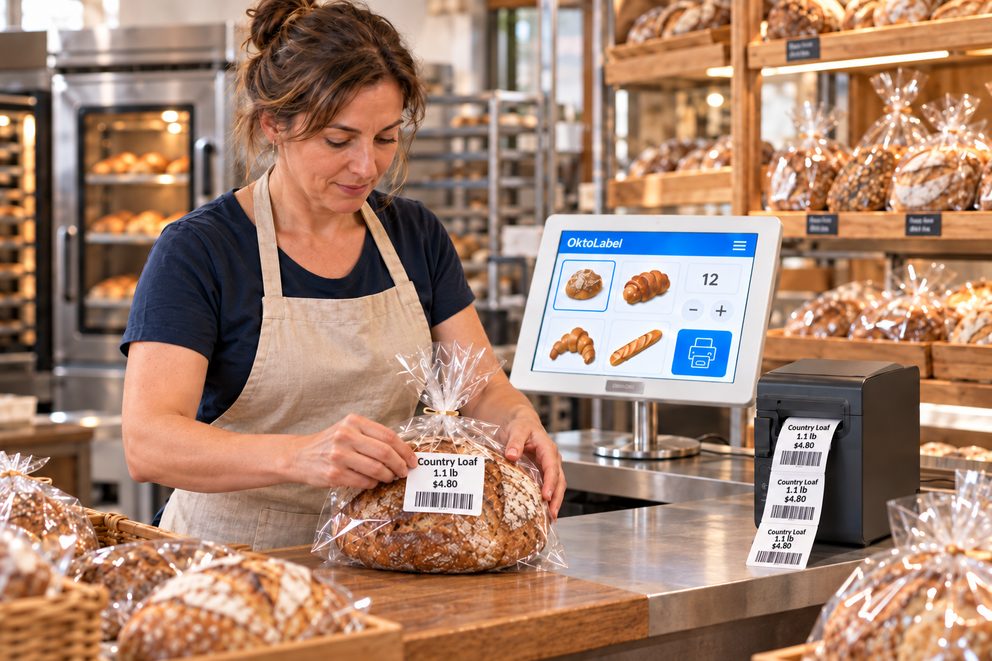
At the counter, speed counts. In the bakehouse, the right quantity. Till, café, bakehouse and branches all work with the same items from the OktoPOS Manager.
- Large item buttons for rolls, bread and pastries
- Switch staff with a tap on the name
- Serve the next customer while the previous one is still looking for money
- One scale for several tills, the weight goes straight into the basket
- Café on site: eat in and take away at the same till
- Customer card with bonus points, prepaid cards and vouchers
- Pre-order with the takeout app
- Record waste at the end of the day at the till
- Receipt also electronically as a QR code
Plan production
The ingredient calculator works out how much flour, butter and yeast the planned quantities need. For several products it adds the quantities up.
Production planning ›Labels for the bake-off station
Freshly packed goods get their label with price, ingredients, allergens, nutritional values and best-before date. The details come from the item.
Label printer ›Recipes, nutritional values, allergens
Stored once on the item, they appear on the label and, on request, as a product data sheet from the receipt printer.
Recipes and nutritional values ›5 rolls for the price of 4
The bundle price is stored in the OktoPOS Manager. The till deducts the discount by itself.
Started at the till, finished at the scale
The sales assistant moves to the till at the scale. The basket is already there, the pastries are added. View the workflow
The hotel pays on account
The delivery is booked to the customer account. The invoice goes out as a PDF by email.
- Does the till keep working if the internet goes down?
- Yes. The till also works without a connection. As soon as the network is back, the receipts go to the OktoPOS Manager.
- Can one scale serve several tills?
- Yes. One scale serves several tills. A basket with weighed items can be completed at another till.
- How do the allergens get onto the label?
- Ingredients, allergens and nutritional values are stored once on the item in the OktoPOS Manager. OktoLabel prints them on the label, and on request there is a product data sheet from the receipt printer.
- Is a customer card valid in all branches?
- Yes. The customer account is held centrally in the OktoPOS Manager. Bonus points count in every branch, and vouchers can be redeemed in every branch.
Functions for retail
Ring up, label, reorder.
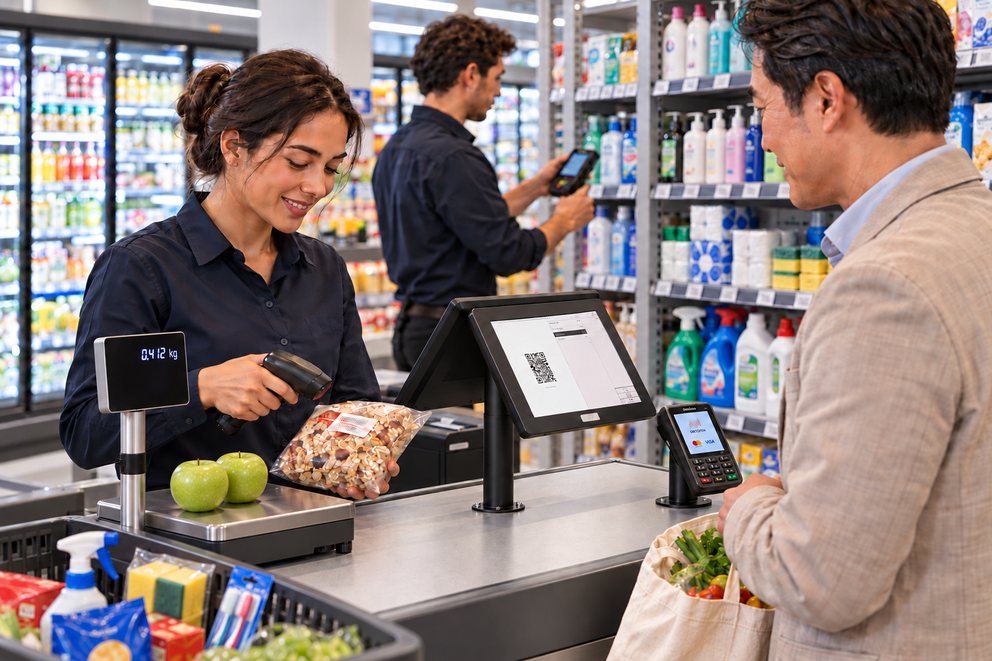
From convenience stores and beverage stores to supermarkets: OktoPOS brings the functions retail needs every day.
- Scan articles with practically any scanner
- The cash register recognizes newspapers, magazines and age restrictions from the barcode
- Bottle deposits and beverage crates without re-entering
- Prices on the shelf: printed label or digital price tag
- Inventory counts, deliveries and reordering with the handheld scanner
- Up to 100,000 articles in the database
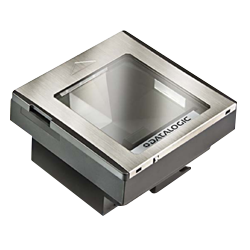
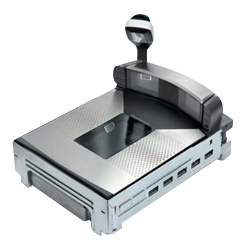
Article Scanning
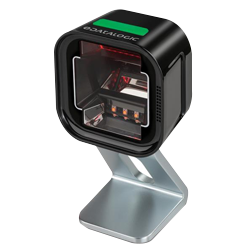
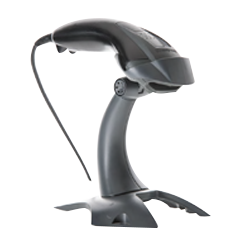
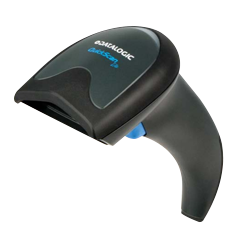
The OktoPOS POS system supports practically all scanners available on the market.
The scanners must be configured for keyboard emulation. Other configurations may be necessary for the recognition of different barcode formats. The scanner is connected to the cash register via USB.
In-Store Barcodes
Scan. Recognize. Ring up.
In-store barcodes contain an article ID and the sales price. The cash register recognizes the stored article and takes the price from the barcode.
The article is created once. The price can vary from pack to pack.
The scanner reads the label.
Article and price are recognized.
The price is in the cart.
Instead of the price, the barcode can contain the weight. The cash register recognizes the stored weighed article and calculates the sales price from the weight and the price per pound. This also works for goods from your suppliers, such as pre-packed cheese: the supplier does not know your sales price and therefore encodes only the weight in the barcode. This way, packs of Young Gouda of different weights are recorded with the same article.
More functions for retail
Credits
Articles that customers complain about or return are rung up via a function button at the negative value of their price.
Third-party vouchers
Vouchers such as Amazon or iTunes are recorded without VAT and not as revenue, but they are taken into account in the cash balance. They cannot be discounted.
Up to 100,000 Articles
The management interface in the OktoPOS Manager is designed for a large number of articles. With bulk changes you can, for example, raise all prices by a percentage and round them.
Cash withdrawal
Pay out cash against a card payment. This saves the customer a trip to the ATM.
Parking Spot
Shopping carts that are not paid immediately can be put on hold.
Scales
Scales can be connected directly to the cash register, from the mini scale to the scanner scale.
Mobile inventory count with a handheld scanner
With the handheld scanner you record inventory counts, deliveries and reorders on the move.
- Scan articles
- Creation of barcode lists
- In-store barcodes
- Quick article creation at the cash register using the barcode
- Edit articles and change prices at the cash register
- Deposit function
- Ring up drink crates by scanning a bottle
- Recording lottery sales
- Vouchers (Amazon, iTunes, etc.)
- Credit function
- Price lock (exclusion of discounts and vouchers for certain articles)
- Cashier quick switch
- Customer quick switch
- Designed for a high number of different articles in the database (100,000)
- Cash payout function
- Held orders
- Connection of scales
- Mobile inventory count with handheld scanner
- Creation of shelf labels
- Printing of shelf labels
Functions for law firms and tax advisors
Bill by the hour or at a flat rate.
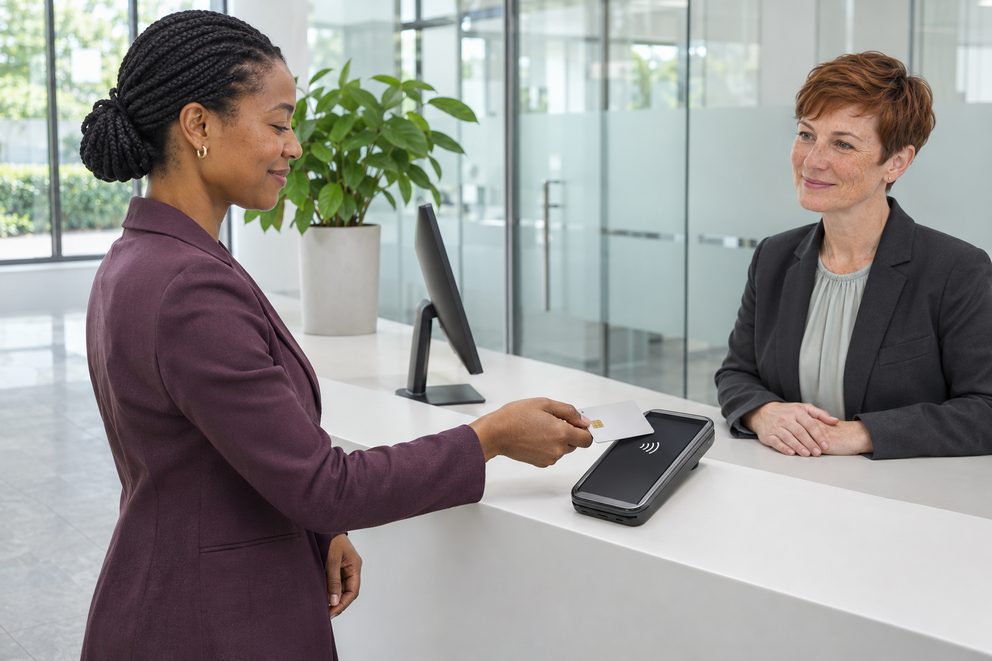
OktoPOS bills the way law firms work: by the hour or at a fixed amount.
- Store hourly rates per service, several if needed, for example for advice and for clerical work
- Enter the hours at the register, the amount calculates itself
- Flat fees and open amounts, for example for an initial consultation or a certificate
- Customer database for clients
- Payment in cash, by card via OktoFIN or on account
- Receipt also electronically as a QR code
- Sales exported for accounting software
- For tax advisors: their own access to the registers of clients who use OktoPOS
Advice by the hour
The hourly rate is stored. At reception the hours are entered, and the client pays in cash or by card.
Two hourly rates on one receipt
Tax advice and clerical work each have their own rate. The register calculates both from the hours entered.
- How are hours billed?
- Each service gets its hourly rate in the OktoPOS Manager. At the register you select the service and enter the hours, for example 1.5. The register calculates the amount. Flat fees and open amounts work the same way.
Functions for medical practices and health professions
Bill self-paying patients at reception.
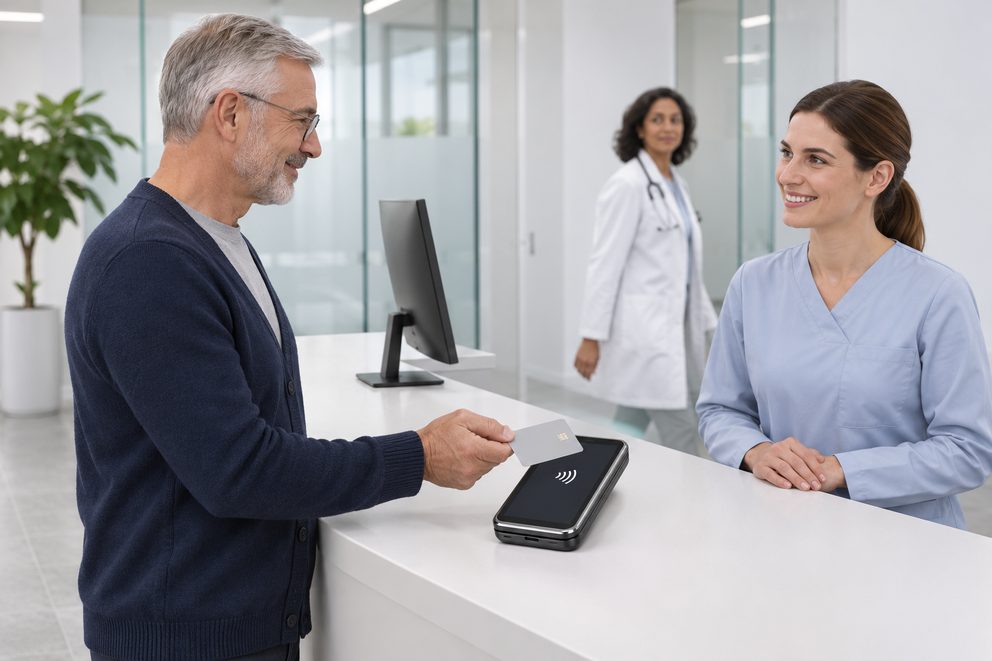
In many practices, patients pay at reception for self-pay services, certificates or products. OktoPOS bills these at fixed prices.
- Fixed prices per service, plus open amounts
- Services by time where it fits, for example for expert reports
- Sale of products at reception, for example care products
- The practice decides what a service is called on the receipt
- Patients in the customer database, with a number only if preferred
- Payment in cash, by card via OktoFIN or on account
- Receipt also electronically as a QR code
Self-pay at a fixed amount
Self-pay services and certificates have their fixed price. The receipt shows only what the practice has defined for them.
Service and product on one receipt
The dental cleaning at a fixed price, plus the care kit from reception.
Self-pay without a patient name
Massage and heat for self-paying patients, booked without a customer record.
- Does billing with health insurance go through the register?
- Anything billed via the health insurance or by bank transfer does not go through the register. This is about payments at reception, in cash or by card.
- What is on the receipt?
- The practice decides what each service is called, for example "Private service". The patient receives the receipt as a QR code or on paper on request.
- Do I have to create patients with their name?
- No. A transaction also works without a customer record or with a number only.
Functions for hair salons, beauty and massage
Service and product on one receipt.
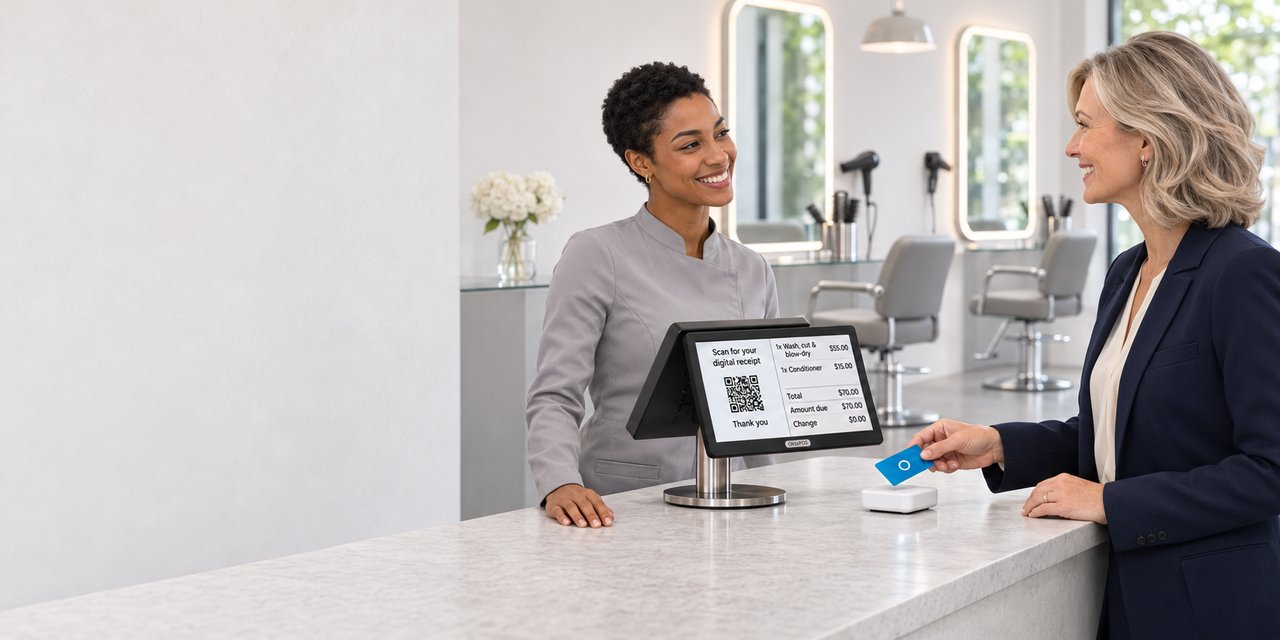
OktoPOS bills what a salon sells: services at a fixed price and products from the shelf.
- Set fixed prices for services, for example a haircut, coloring or a 60-minute massage
- Sell care products with stock tracking, on the same receipt as the service
- Customer database with customer card and bonus points
- Sell gift vouchers at the register or in your own online store on your website
- Tips on the payment terminal, the salon sets the suggestions itself
- Payment in cash, by card via OktoFIN or on account
- Receipt also electronically as a QR code
- Shift schedule and time recording for the team
Haircut and care product
The service has its fixed price, the shampoo comes from stock. Both are on one receipt.
Paid with a gift voucher
The voucher is scanned at the register. Whatever is left stays on the voucher.
- Are service and product on one receipt?
- Yes. Both are items in the OktoPOS Manager, the products with stock. At the register you tap one after the other.
- How do I sell vouchers?
- At the register via the receipt printer or through an online store on your website. Online, the customer receives the voucher as a PDF by email.
- Can I reward regular customers?
- With the customer card, customers collect bonus points and redeem them on their next visit.
Functions for gyms, classes and clubs
Members pay cashless at the bar.
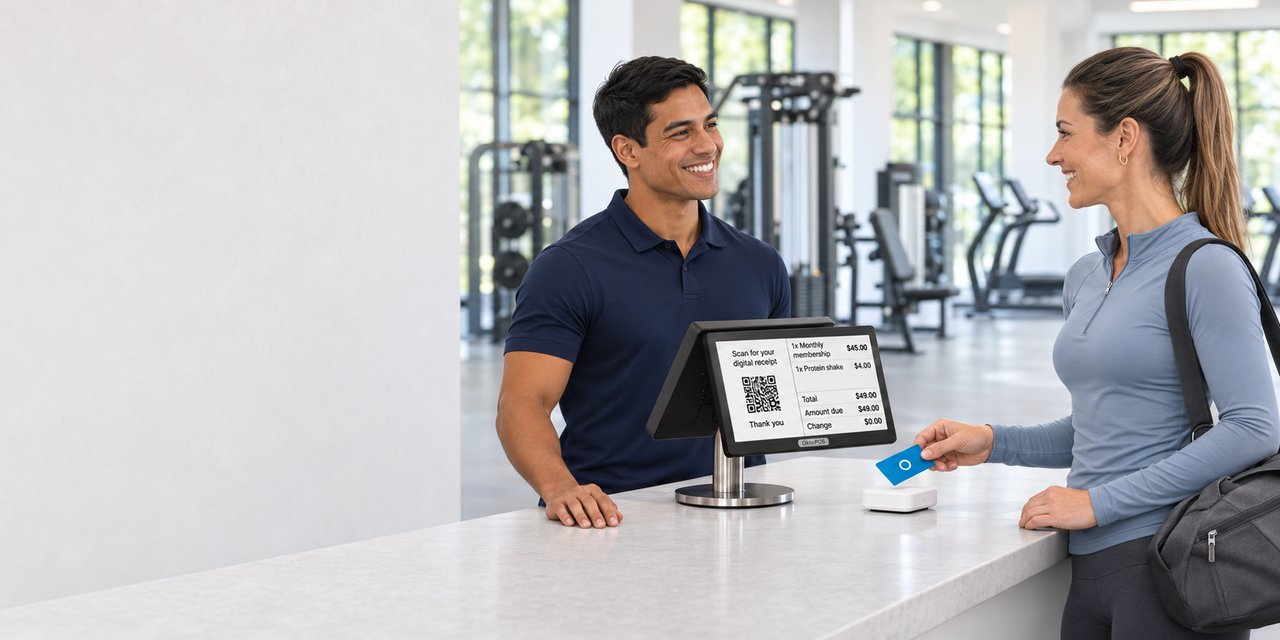
OktoPOS takes payments at the bar and keeps the members’ accounts.
- Prepaid cards for members, topped up at the register, at the top-up terminal or online
- Sell drinks, shakes and accessories with stock tracking
- Pay later: open amounts go to the customer account, the member pays later
- Classes with a list of participants, with sign-up on your own website if you wish
- Entry with the customer card: the door opens for registered members
- Gift vouchers at the register and online
- Payment in cash, by card via OktoFIN or on account
- Receipt also electronically as a QR code
- Shift schedule and time recording for the team
A shake with the prepaid card
The member holds the card to the reader, the amount is deducted from the balance.
On the tab, paid later
The drinks after training go to the customer account. The member settles the open amount at the register later.
- Can members pay without cash?
- Yes, with a prepaid card or a QR code on their phone. Top-ups are made at the register, at the top-up terminal or online.
- How do classes work?
- You create classes in the OktoPOS Manager with date, time and the maximum number of participants. The list of participants shows who has paid. Through an interface the classes appear on your website, where members sign up.
- Can members pay later?
- Yes. The amounts go to the member’s customer account. The member settles the open balance at the register, for example every six months.
Hotels
Charging to Rooms with OktoPOS Cash.
OktoPOS Cash is suitable for use in hotels.
Transactions can be charged to rooms. In the OktoPOS Manager, the transactions can be filtered by room and marked as billed.
OktoPOS has interfaces to Oracle Hospitality and Infor.
Do you use other hotel software? We would be happy to check the connection options.


Features for Bars, Clubs and Discos
Charge it at the bar. Pay on the way out.
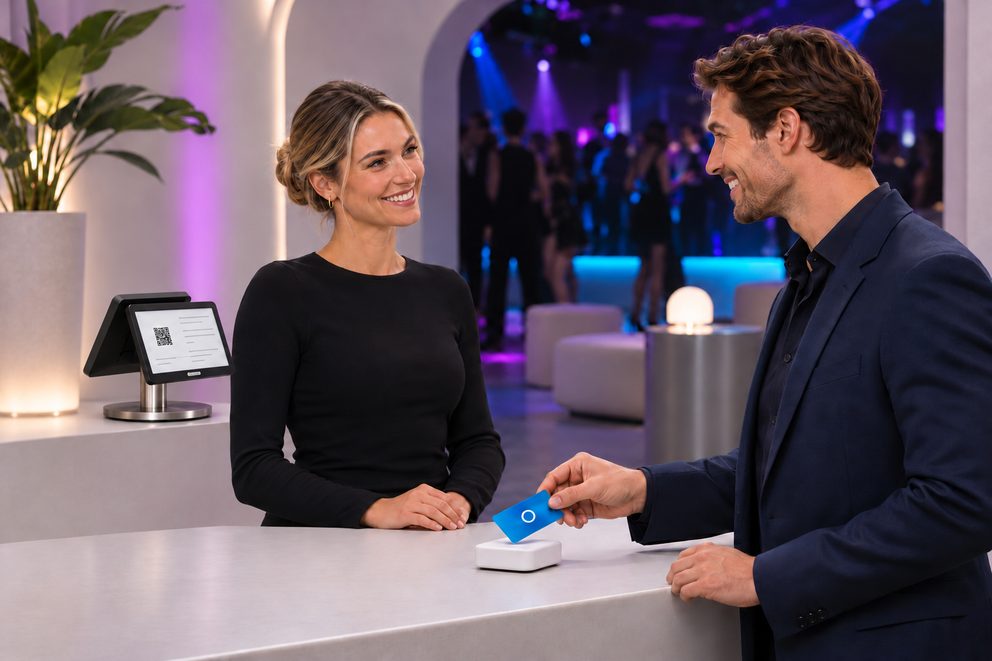
Every guest receives a guest card at the entrance. Whatever they order at the bar is charged to the card. They pay once, at the checkout register on the way out.
- Guest cards (RFID): charge orders at the register, at the order terminal or at the self-order terminal to the card
- Pay on the way out at the checkout register or at the self-checkout
- Prepaid cards: top up a balance in advance, the remaining balance is paid out
- Login at the register with a server key, chip card or PIN, switching users without logging in again
- Settlement per cashier at the end of the shift
- Take orders and payments at the table with the OrderTab
- With OktoFIN, guests pay directly at the OrderTab by card or phone
- Orders from the table appear at the bar immediately, on the screen or the printer
- Tips by card, with your own tip suggestions on the payment terminal
Pay once, on the way out
The register reads the guest card and shows everything charged to it during the night.
Top up first, get the rest back
The guest tops up at the entrance and pays at the bar with the card. Whatever is left, the register pays back in cash at the end.
Settlement per cashier
Everyone logs in with their own server key. At the end, it is clear for each person what they took in cash, by card and as tips.
- What do you need for the guest card?
- The guest cards, a card reader at every register and every order terminal, and the SW-RFID software. Larger venues also need a branch server.
- How does the guest pay at the checkout register?
- In cash or by card, with OktoFIN also with Apple Pay and Google Wallet.
Functions for cafeterias and institutional catering
Pay with the card. Top up the balance at the terminal.
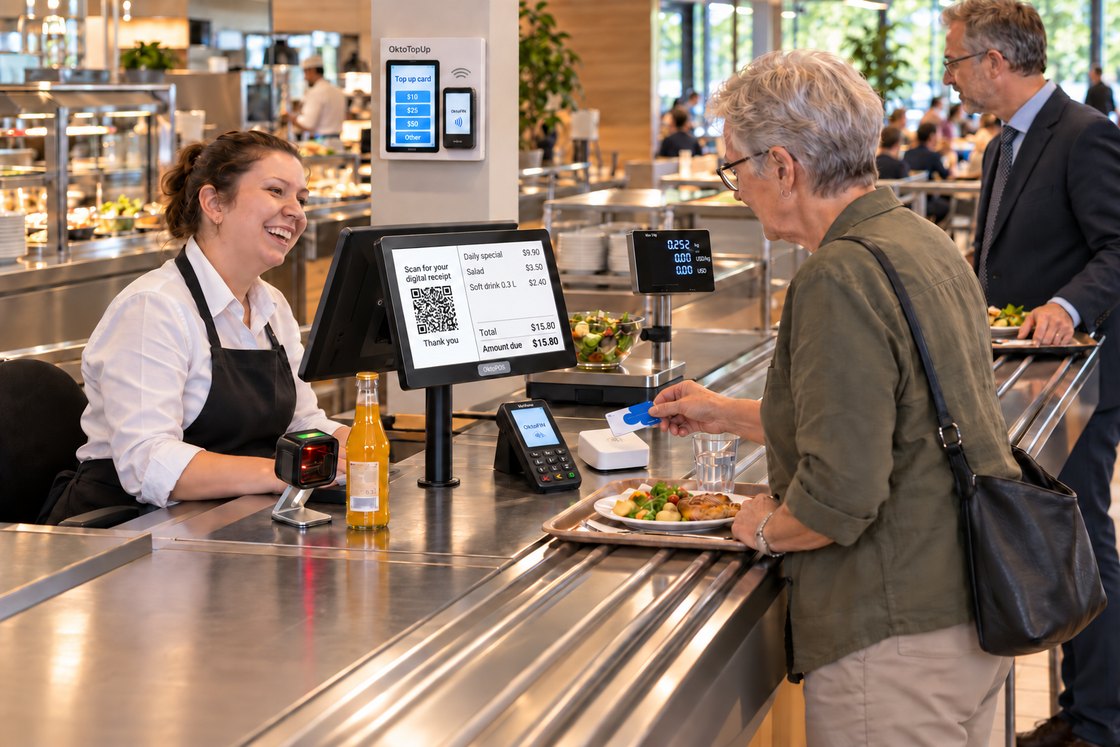
Employee cafeterias, dining halls and hospital cafeterias ring up a lot of guests in a short time at lunch. Most pay with a card that holds a balance or is billed later.
- Up to 45 dishes and items right on the first level of the register
- Pay by card or chip, with or without a name
- Top up the balance at the register, at the OktoTopUp top-up terminal or online from home
- A maximum balance, plus a limit on how many times a day the balance can be used to pay
- Employees and guests in their own customer groups, the register suggests the group discount
- Billing by invoice or payroll deduction
- Salad bar and buffet by weight: scale at the register, the plate weight is deducted
- Nutrition facts, allergens and additives from the recipes
- Self-checkout terminal where guests pay on their own with their card
- Receipt also electronically as a QR code
Employee price with the card
The card tells the register that an employee is paying. Her customer group discount is deducted, and she pays with her balance.
Topped up by the parents
The parents top up the balance online. The register allows one payment with the balance per day.
Salad by weight
The plate goes on the scale, and the register deducts its weight. The visitor pays by card via OktoFIN.
- How do employees get their card?
- They register once on your website and receive a customer card. For guests, there are cards without a name.
- What happens if a card is lost?
- A card with a name is blocked and replaced with a new one.
- Can a remaining balance be paid out?
- Yes, at the register, for example when someone leaves the company.
- Can meeting rooms order food?
- Yes, via an ordering terminal in the room. The order appears in the kitchen and is charged to the employee or to a cost center.
Scales
Weighing and checkout in one go.
Software: API-OS
Place the goods, select the article, done. Weight, price and the correct tax rate appear on the receipt without anyone typing them in.
Bench scale with customer display
The scale stands next to the cash register. Cashier and customer see the same result.
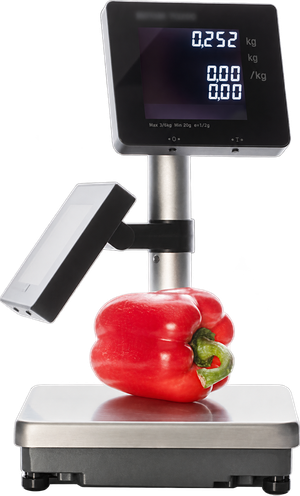
At a glance
- Weight and price visible on both sides
- Tare at the touch of a button, also via barcode or QR code
- One scale, several cash registers
- Takeout packaging sets price and tax rate
Tare, packaging and takeout
- If the goods are already in packaging or on a plate, for example at a salad bar, the tare weight is deducted at the touch of a button.
- The tare weight can also be captured using a barcode or QR code.
- The sales channel can be linked to the packaging. With takeout packaging, the cash register sets the price and the tax rate for takeout.
Labels for prepackaged goods
A label printer can stand behind the scale. The article data comes from the OktoPOS Manager, the weight from the scale.
- Price and price per unit
- Quantity and shelf life
- Ingredients and additives
Several cash registers on one scale
- One scale serves several cash registers, for example in a bakery or at a fresh food counter.
- A cart with weighed articles can be checked out at another cash register.
Scanner scale in the checkout counter
Scanner and scale sit in one housing that is let into the checkout counter from above.
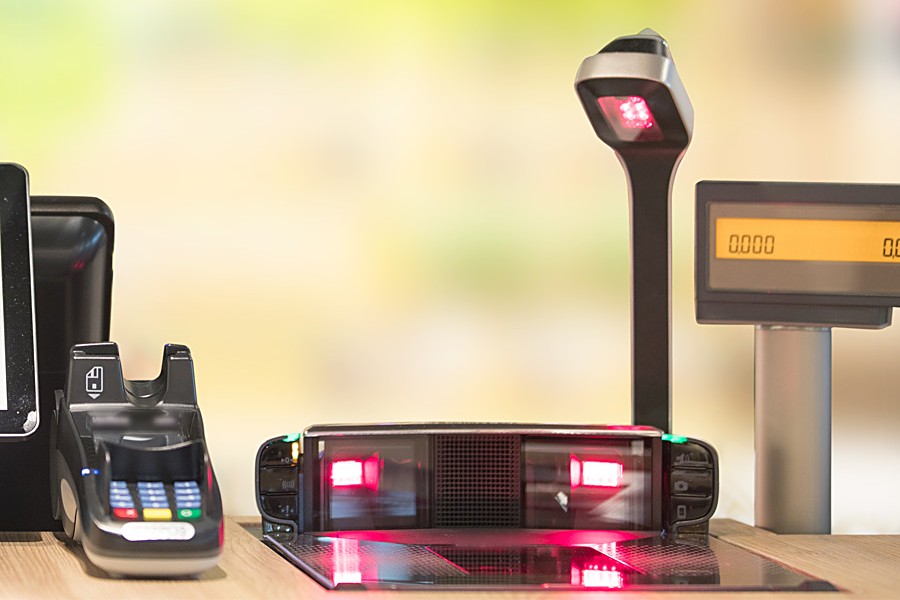
At a glance
- Scanning and weighing in one step
- For supermarkets and large assortments
- From the small bench unit to the scanner scale
The built-in unit in the checkout counter
- The goods are scanned and weighed in one step.
- From the small bench unit to the scanner scale, a wide range of models is available.
Connection and customer display
- The scale is connected with a USB plug.
- A double-sided customer display is necessary. The weighing result appears on the customer display of the cash register, the weighing process itself does not.
How the cash register and the scale work together
The cash register knows the article and its price per kilogram. Weighing and calculating happen in the scale.
Where scales are in use
- Fruit and vegetable retailers
- Bakeries
- Fresh food counters
- Supermarkets
- Cafeterias
- Market stalls
- Other sales counters with articles sold by weight
Hardware
OktoPOS is not tied to any manufacturer, so you benefit from a wide selection of hardware. Cash register computers, customer cards, customer displays, scales, scanners, self-order terminals, pagers for the OktoPOS guest call system and queue management and much more.
OktoPOS is not tied to any manufacturer, so you benefit from a wide selection of hardware.
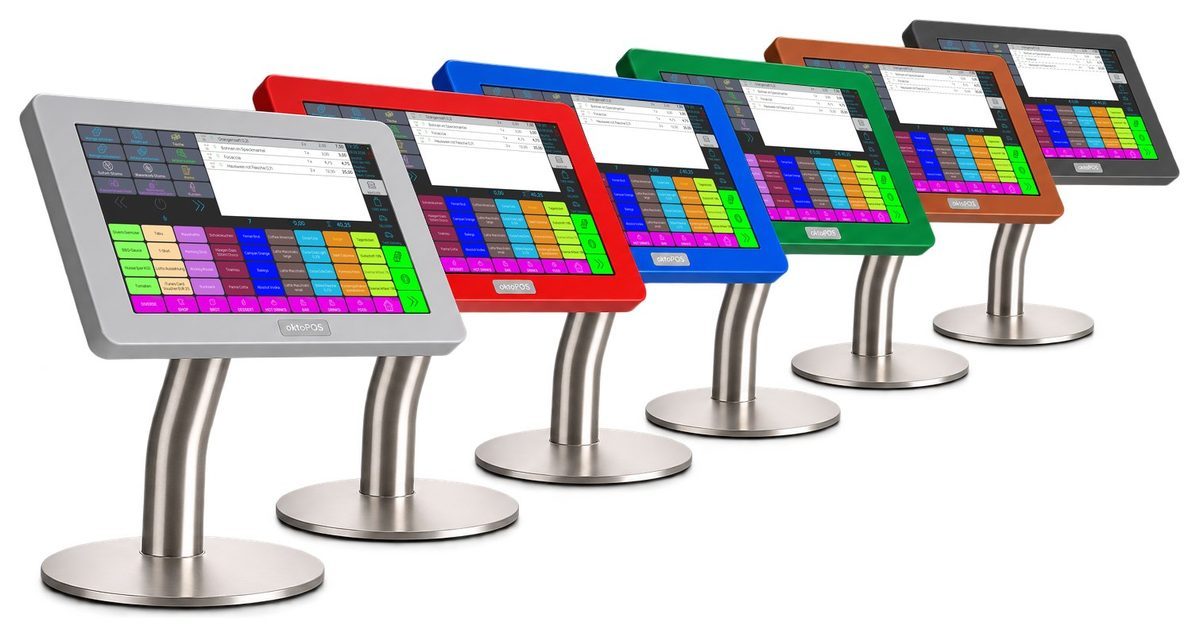
All devices around the cash register
Hover over a device in the photo or tap it. The window tells you more and lets you add the device to your shortlist.
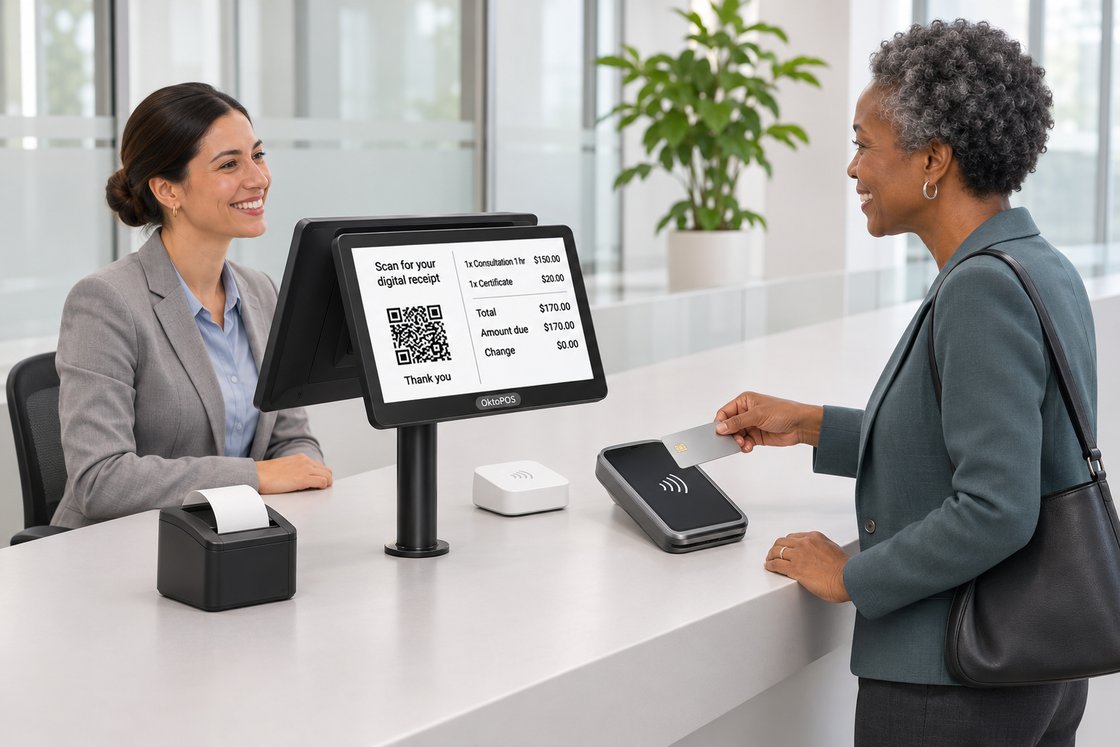
All devices around the cash register
Hover over a device in the photo or tap it. The window tells you more and lets you add the device to your shortlist.
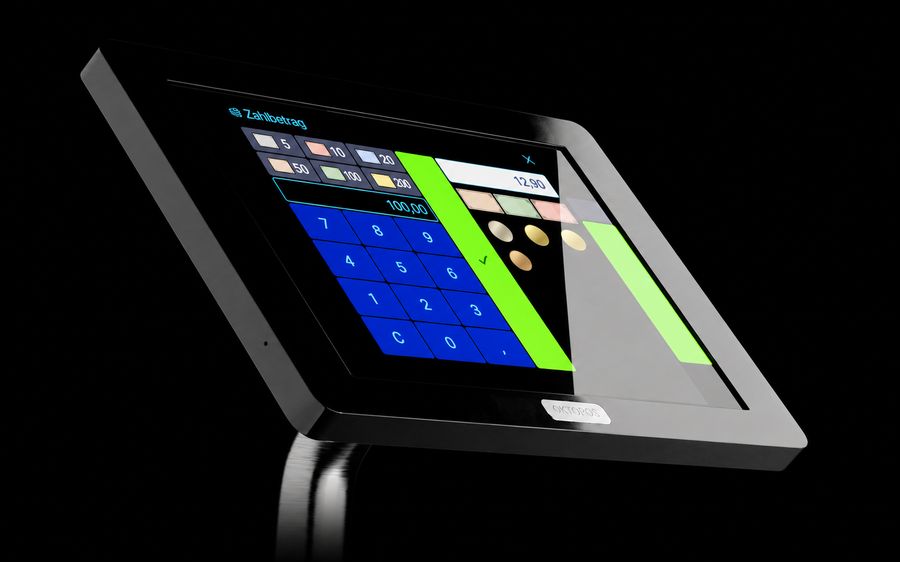
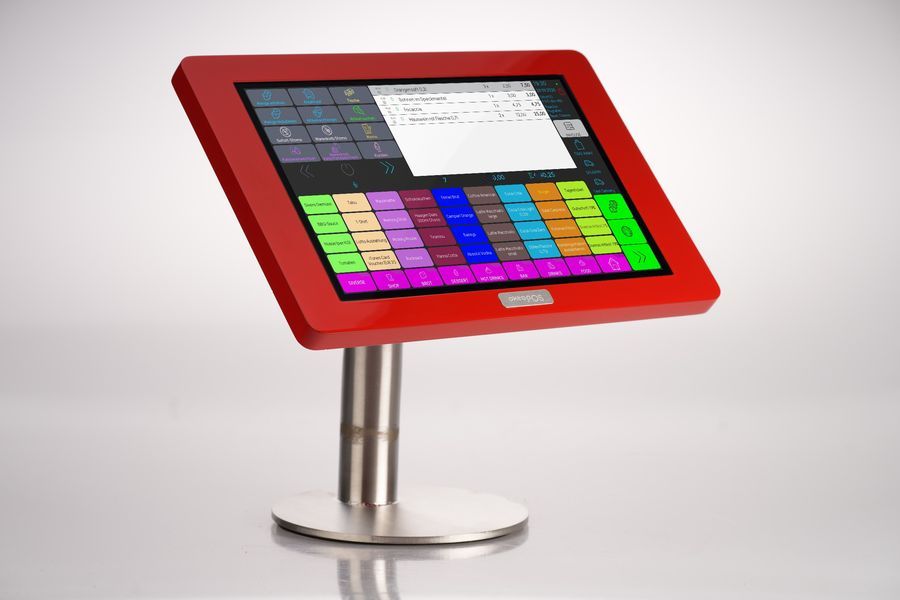
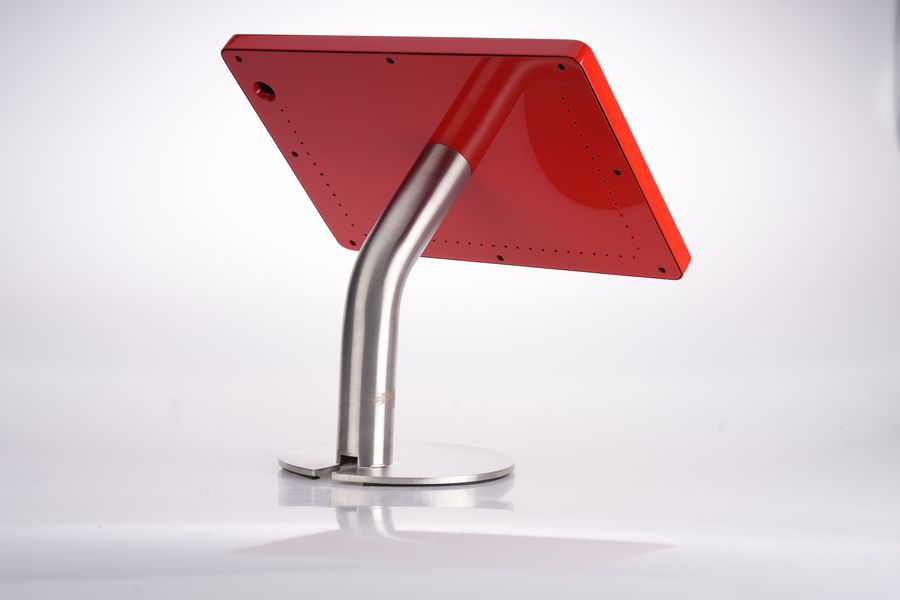
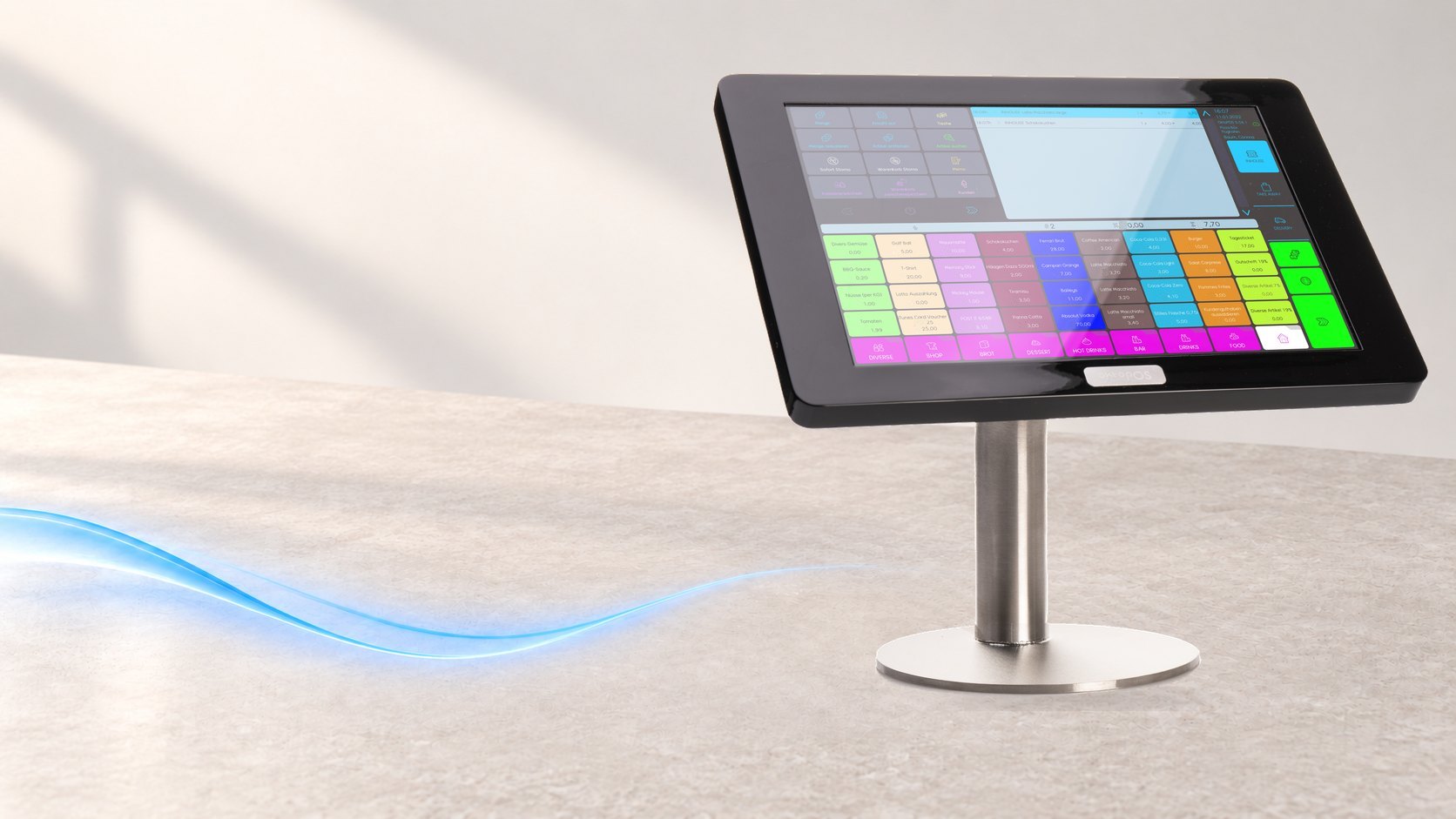
Lower power consumption
In operation, the OktoPOS cash register uses less power than a conventional POS system.
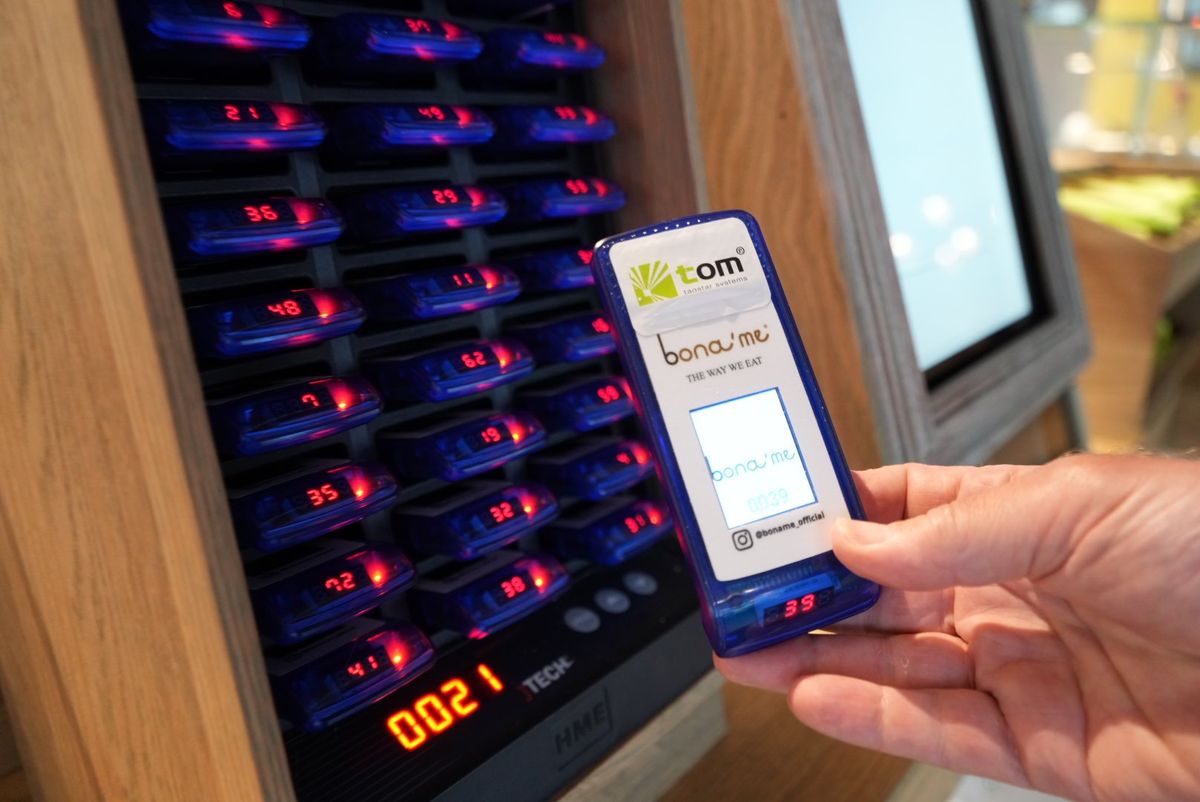
Pager
Calling Guests / Queue Management.
Software: SW-PA
Queue Management
- The arriving customer receives a pager.
- The number of the pager is entered into the OktoPOS queue terminal using the touchscreen.
- Optionally, comments or groups can be selected.
- The customer's name and telephone number can optionally be entered and recorded.
- The number of the pager and the comments are displayed in the reservation list on the touchscreen reservation terminal.
- If the customer is to be called, the reservation is selected in the reservation list and the pager is called.
- The customer returns their pager and the reservation is removed from the list.
Do I have to buy the hardware from OktoPOS or can I also use my own hardware?
You can also use the hardware you already have or buy it elsewhere, though we do not recommend it, because you gain the following advantages when you get the hardware from us:
- Fair prices.
- The prices already include the installation of the software on the hardware and the initial configuration. If you purchase the hardware elsewhere, we charge for this at an hourly rate.
- Compatibility. With the hardware purchased from us, you have the security that the hardware has been tried and tested and is compatible.
Do you also offer used hardware?
Yes. Ask us about the available stock.